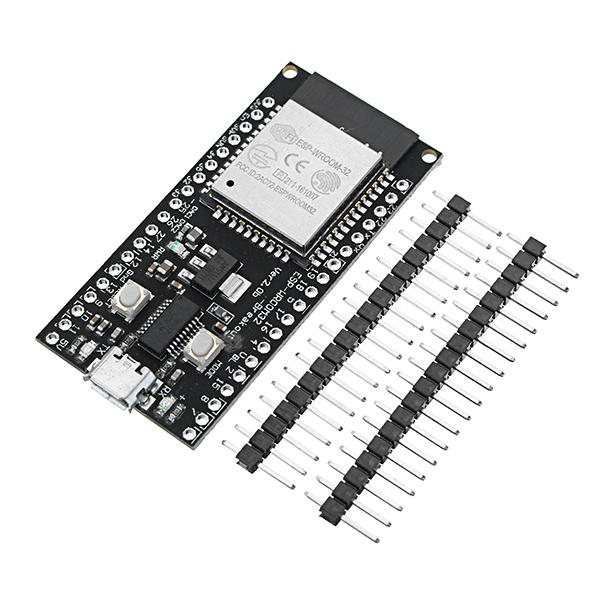
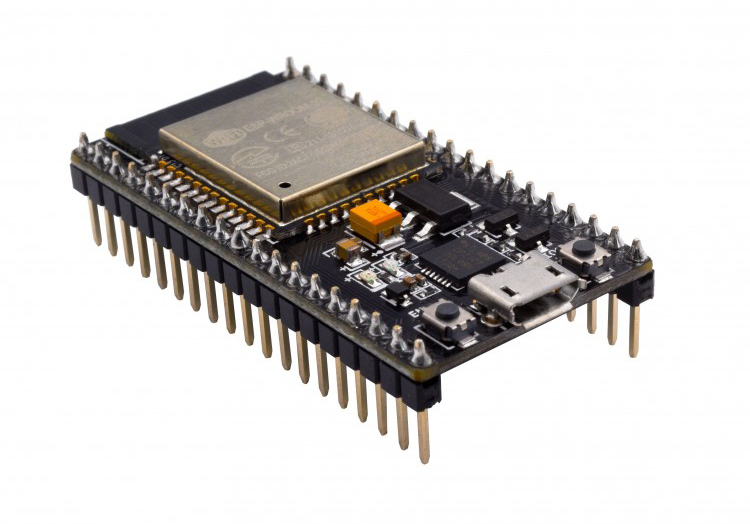
The ESP32 is a powerful microcontroller with Wi-Fi and Bluetooth capabilities, making it perfect for network-based applications. In this tutorial, you’ll learn how to use your ESP32 to act as a TCP server, listening for incoming TCP packets on a specific port.
Requirements
- An ESP32 development board
- Arduino IDE with ESP32 board support installed
- A USB cable
- A Wi-Fi network (SSID and password)
- A TCP client (can be a PC with tools like telnet, netcat, or a custom app)
Set Up the Arduino IDE for ESP32
If you haven't already:
- Open Arduino IDE.
- Go to File > Preferences, and in the “Additional Board Manager URLs”, add: https://raw.githubusercontent.com/espressif/arduino-esp32/gh-pages/package_esp32_index.json
- Go to Tools > Board > Boards Manager, search for esp32, and install the package.
- Select your ESP32 board under Tools > Board.
The TCP Server Code
Here’s a simple sketch that creates a TCP server on port 8080:
#include <WiFi.h>

const char* ssid = "YOUR_SSID";
const char* password = "YOUR_PASSWORD";

WiFiServer tcpServer(8080); // Listen on port 8080

void setup() {
   Serial.begin(115200);
   delay(1000);

// Connect to Wi-Fi
   WiFi.begin(ssid, password);
   Serial.print("Connecting to WiFi...");
   while (WiFi.status() != WL_CONNECTED) {
      delay(500);
      Serial.print(".");
   }
   Serial.println(" connected!");
   Serial.println("IP address: ");
   Serial.println(WiFi.localIP());

// Start the server
   tcpServer.begin();
   Serial.println("TCP server started on port 8080");
}

void loop() {
   WiFiClient client = tcpServer.available(); // Check for incoming clients

   if (client) {
      Serial.println("Client connected!");
      while (client.connected()) {
         if (client.available()) {
            String data = client.readStringUntil('\n');
            Serial.print("Received: ");
            Serial.println(data);
            client.println("Data received."); // Echo back
         }
      }
      client.stop();
      Serial.println("Client disconnected.");
   }
}Testing the TCP Server
- Upload the code to your ESP32.
- Open the Serial Monitor (baud 115200) and wait for the ESP32 to connect to Wi-Fi.
- Note the IP address shown.
From a PC:
If you're on Windows/Linux/macOS, use telnet or netcat:
Then type a message and press Enter. You should see it printed in the Serial Monitor and echoed back.
Notes & Troubleshooting
- Ensure your PC and ESP32 are on the same Wi-Fi network.
- Some networks (like guest networks) may block TCP connections.
- You can change the listening port by modifying the WiFiServer tcpServer(8080); line.
- You can add custom logic to parse and respond to commands from the client.
Use Cases
- Remote monitoring/control of sensors or relays
- Data logging from a mobile app or PC
- Creating a simple REST-like TCP interface
What’s Next?
- Try handling multiple clients using a WiFiClient array.
- Add encryption using SSL (with WiFiServerSecure).
- Combine with sensors and actuators to build interactive IoT projects.
If you found this guide helpful, feel free to bookmark it or share it with fellow tinkerers! 😊 Let me know if you want a follow-up article with enhancements like handling multiple clients or sending sensor data.