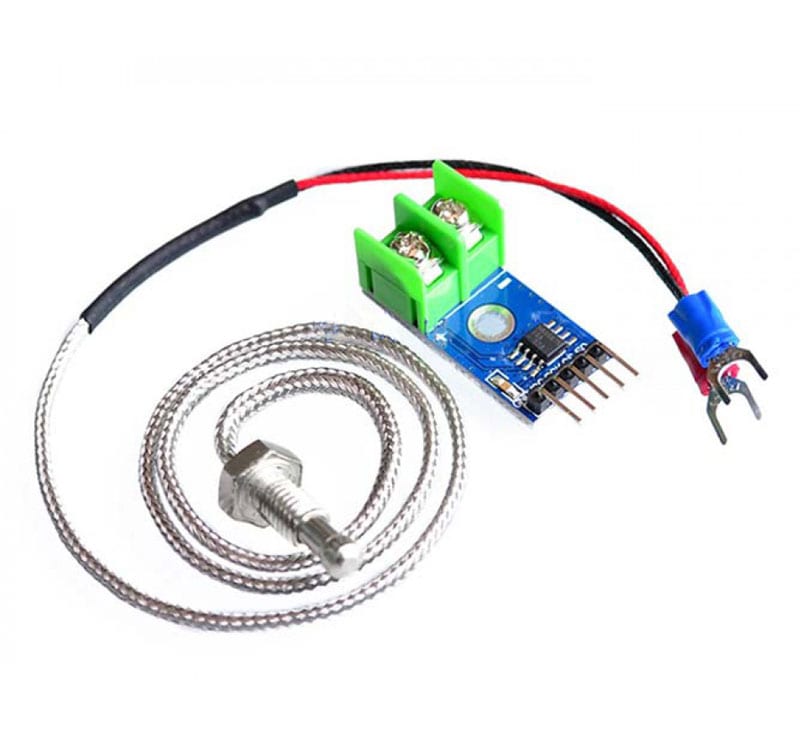
Introduction to LM35 Temperature Sensor
The LM35 is a precision temperature sensor that provides an analog voltage output proportional to the measured temperature. It's popular among electronics enthusiasts for its simplicity, accuracy, and ease of use with microcontrollers like Arduino and ESP32.
In this tutorial, you’ll learn how LM35 works, how to interface it with Arduino and ESP32, and how to build two practical projects — a basic temperature reader and an IoT-based web server display.
What Is an LM35 Sensor?

The LM35 is an analog temperature sensor that outputs voltage linearly related to the Celsius temperature. It doesn’t require calibration and provides a direct temperature-to-voltage conversion, making it extremely beginner-friendly.
Manufacturer: Texas Instruments
Output Type: Analog (10mV/°C)
Operating Range: -55°C to +150°C
Accuracy: ±0.5°C (at room temperature)
Key Features and Specifications of LM35
| Feature | Description |
|---|---|
| Operating Voltage | 4V to 30V |
| Output Voltage | 10 mV per °C |
| Temperature Range | -55°C to +150°C |
| Accuracy | ±0.5°C (at 25°C) |
| Output Type | Analog |
| Power Consumption | Low |
How the LM35 Sensor Works: Principle of Operation
The LM35 works on the principle that the output voltage changes linearly with temperature.
For every 1°C rise, the output increases by 10 mV.
So if the LM35 outputs 250 mV, the temperature is 25°C.
Formula:

This linear relationship makes the LM35 simple to use — no complex calibration or signal conditioning is required.
That means:
- 0°C → 0V
- 25°C → 250mV
- 100°C → 1.0V
Since the ESP32 ADC reads voltage in a range (0–3.3V), we can compute the temperature as:

Understanding the LM35 Pin Configuration and Circuit Diagram

LM35 Pinout Explained
| Pin | Function | Description |
|---|---|---|
| 1 | VCC | Connects to 5V (Arduino) or 3.3V (ESP32) |
| 2 | VOUT | Analog output voltage |
| 3 | GND | Ground connection |
LM35 Wiring and Power Requirements
- For Arduino, power it with 5V.
- For ESP32, use 3.3V.
- Always use a common ground between LM35 and the microcontroller.
- Optionally, add a 0.1 µF capacitor between VOUT and GND to stabilize readings.
Using LM35 with Arduino: Step-by-Step Guide
Components Required for Arduino + LM35 Project
- Arduino Uno (or Nano)
- LM35 temperature sensor
- Jumper wires
- Breadboard
- (Optional) 16x2 LCD display
Circuit Diagram for LM35 with Arduino

Connections:
- LM35 VCC → 5V
- LM35 GND → GND
- LM35 VOUT → A0 (analog pin)
Arduino Code to Read Temperature from LM35
Displaying Temperature on Serial Monitor or LCD
- Open Serial Monitor (Ctrl + Shift + M).
- You’ll see continuous readings like:
- To display it on an LCD, use the LiquidCrystal library and connect pins RS, E, D4–D7 accordingly.
Using LM35 with ESP32: IoT-Based Temperature Monitoring
Components Required for ESP32 + LM35 Project
- ESP32 board
- LM35 temperature sensor
- Breadboard and jumper wires
- (Optional) Wi-Fi network for IoT display
Circuit Diagram for LM35 with ESP32
Connections:
- LM35 VCC → 3.3V
- LM35 GND → GND
- LM35 VOUT → GPIO34 (analog input)
ESP32 Code to Read Temperature from LM35
Displaying Temperature on a Web Server (IoT Project)
Below is a full example code that:
- Reads temperature from LM35.
- Connects to Wi-Fi.
- Hosts a simple webpage showing live temperature readings.
Accessing the Web Page
- Upload the sketch to your ESP32.
- Open the Serial Monitor at 115200 baud.
- Wait until you see:
- Open that IP in your browser (e.g., http://192.168.1.45)
- You’ll see a temperature dashboard refreshing every 2 seconds!
Troubleshooting Common Issues
Incorrect Temperature Readings
- Check voltage reference (5V or 3.3V).
- Ensure correct analog pin.
- Add a capacitor between VOUT and GND to reduce noise.
Sensor Noise and Calibration Tips
- Use shielded cables for long distances.
- Calibrate by comparing with a digital thermometer.
Applications of LM35 in Real-Life Projects
Home Automation Systems
- Temperature-controlled fans or air conditioners.
Environmental Monitoring and IoT Systems
- Smart agriculture
- Weather monitoring stations
- IoT dashboards (via Blynk, ThingSpeak, etc.)
Advantages and Limitations of LM35 Sensor
Benefits of Using LM35
- Linear and accurate output
- Low cost and easy to interface
- No external calibration needed
Limitations and Alternatives
- Analog-only output (needs ADC)
- Not waterproof
- Alternatives: DHT11, DS18B20, TMP36
FAQs: How to Use LM35 Temperature Sensor with Arduino and ESP32
1. What voltage does LM35 require?
It operates between 4V and 30V, commonly powered by 5V (Arduino) or 3.3V (ESP32).
2. Can I use LM35 with ESP8266 or Raspberry Pi?
Yes, but ensure you use analog-to-digital conversion, as some boards (like ESP8266) have limited ADC support.
3. Why are my readings unstable?
Add a capacitor (0.1 µF) across output and ground to filter noise.
4. How accurate is the LM35 sensor?
±0.5°C at room temperature and ±1°C across a wide range.
5. Can LM35 measure below 0°C?
Yes, but output voltage may go negative, requiring offset circuitry.
6. Which IoT platforms support LM35 + ESP32 projects?
Popular ones include Blynk, ThingSpeak, and Google Firebase.
Conclusion
The LM35 temperature sensor is a simple, reliable, and precise device for temperature measurement and monitoring. Whether you’re using Arduino for basic sensor readings or ESP32 for IoT web dashboards, the LM35 offers versatility and accuracy.
Experimenting with LM35 is an excellent way to start learning about analog sensors, ADC conversion, and IoT data visualization.
For more information, visit the Texas Instruments LM35 Datasheet.