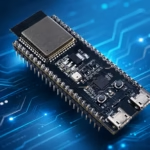
Introduction: What Is the ESP32 Keyboard Project?
The ESP32 Keyboard project allows your ESP32 board to act as a Bluetooth keyboard that can wirelessly send keystrokes to computers, tablets, and smartphones. Using the open-source ESP32 BLE Keyboard library by T-vK, you can emulate a full HID (Human Interface Device) keyboard — all controlled by your microcontroller.
Whether you’re building a custom macro pad, a media controller, or even a wireless password typer, this tutorial will walk you through everything you need to know.
How Wired Keyboards Work
Before diving into Bluetooth keyboards, it’s helpful to understand the foundations of how wired keyboards work.
Matrix Layout and Key Scanning
Wired keyboards typically use a matrix layout — a grid of rows and columns. Each key connects a unique combination of one row and one column.
When a key is pressed, the microcontroller inside the keyboard detects the electrical connection between that row and column.
For example, in a 4x4 matrix:
- 4 row lines × 4 column lines = 16 keys.
- The controller scans the matrix by setting one row HIGH at a time and reading which columns are active.
This efficient system reduces the number of GPIO pins needed.
Key Debouncing in Wired Keyboards
Mechanical switches often “bounce” — sending multiple signals for one press. To solve this, microcontrollers use debouncing algorithms that stabilize readings by waiting a few milliseconds before confirming a keypress.
How Bluetooth Keyboards Work
Bluetooth keyboards operate wirelessly by sending keystroke data to a paired device over Bluetooth Low Energy (BLE) using a Human Interface Device (HID) profile.
HID Protocol Basics
The HID protocol defines how input devices like keyboards, mice, and game controllers communicate with host devices. It standardizes commands such as:
- Key press/release events
- Modifier keys (Shift, Ctrl, Alt)
- Media keys (Volume, Play/Pause)
Pairing and Communication Process
When you pair a Bluetooth keyboard:
- The keyboard advertises its presence.
- The host (e.g., PC or phone) detects and requests pairing.
- A secure connection is established using BLE.
- The keyboard then sends HID packets representing each keypress.
Why Use the ESP32 as a Bluetooth Keyboard?
The ESP32 includes native Bluetooth functionality and has sufficient memory and processing power to emulate HID devices easily.
Using it as a Bluetooth keyboard opens endless possibilities:
- Custom macro keyboards
- Wireless media controllers
- Password automation
- IoT device input panels
And best of all — it’s low-cost, open-source, and programmable.
Getting Started with the ESP32 BLE Keyboard Library
Library Overview
The ESP32 BLE Keyboard library by T-vK simplifies the process of emulating a Bluetooth keyboard. It provides functions to:
- Send key presses and releases
- Send printable characters or strings
- Control media and system keys
Example functions include:
- Open Arduino IDE.
- Go to Sketch → Include Library → Manage Libraries.
- Search for “ESP32 BLE Keyboard” by T-vK and click Install.
- Alternatively, download it from GitHub:
https://github.com/T-vK/ESP32-BLE-Keyboard
and place it in your Arduino libraries folder.
Hardware and Software Requirements
| Component | Description |
|---|---|
| ESP32 Development Board | Any variant (e.g., DOIT ESP32 DevKit V1) |
| Micro USB Cable | For programming and power |
| Arduino IDE | Version 1.8 or higher |
| ESP32 Board Package | Installed via Board Manager |
| BLE Keyboard Library | By T-vK |
Writing Your First ESP32 Keyboard Sketch
Here’s a basic example that sends “Hello World” when the ESP32 connects to a device.
Code Explanation
- BleKeyboard() initializes the device with a custom name and manufacturer string.
- begin() starts BLE advertising.
- isConnected() checks for an active Bluetooth connection.
- print() sends text keystrokes.
- write(KEY_RETURN) simulates pressing “Enter”.
When uploaded, the ESP32 will appear as a Bluetooth keyboard named “ESP32 Keyboard” — ready to type into any text field on your connected device.
Advanced ESP32 Keyboard Examples
Media Control Example
Control system volume and media playback:
Custom Macro Keyboard Example
Assign multiple keystrokes to one button:
Practical Applications of ESP32 Keyboard Projects
- Wireless Macro Pads – Automate repetitive PC tasks.
- Game Controllers – Map ESP32 buttons to keyboard keys.
- Accessibility Devices – Custom input tools for limited mobility users.
- Smart Home Interfaces – Trigger commands via key combinations.
Troubleshooting Common Issues
| Problem | Possible Cause | Fix |
|---|---|---|
| Device not appearing in Bluetooth list | BLE not started | Call bleKeyboard.begin() early in setup |
| Lag or dropped keys | Weak signal or distance | Keep within 5–10m range |
| Wrong keystrokes | Regional layout mismatch | Adjust keyboard layout settings on host |
| Library errors | Outdated dependencies | Update Arduino-ESP32 core |
Frequently Asked Questions (FAQs)
1. Does the ESP32 BLE Keyboard work with iPhones?
No, iOS has strict BLE HID restrictions. It works well with Android, Windows, and macOS.
2. Can I send keyboard shortcuts like Ctrl+C?
Yes! Use press() and releaseAll() functions for combinations.
3. How many devices can I connect at once?
Only one at a time — BLE does not support multi-host pairing here.
4. Does it support Unicode characters?
Not directly. You must map UTF-8 characters manually.
5. Can I rename the keyboard?
Yes, modify the parameters in the BleKeyboard constructor.
6. Is it compatible with ESP8266?
No, BLE is only available on ESP32 boards.
Conclusion
The ESP32 Keyboard project shows how easily you can transform a microcontroller into a fully functional wireless input device.
By understanding how wired keyboards work and leveraging BLE technology through the ESP32 BLE Keyboard library, you can build everything from simple text senders to powerful macro pads and custom automation devices.
External Resource:
🔗 ESP32 BLE Keyboard Library by T-vK on GitHub