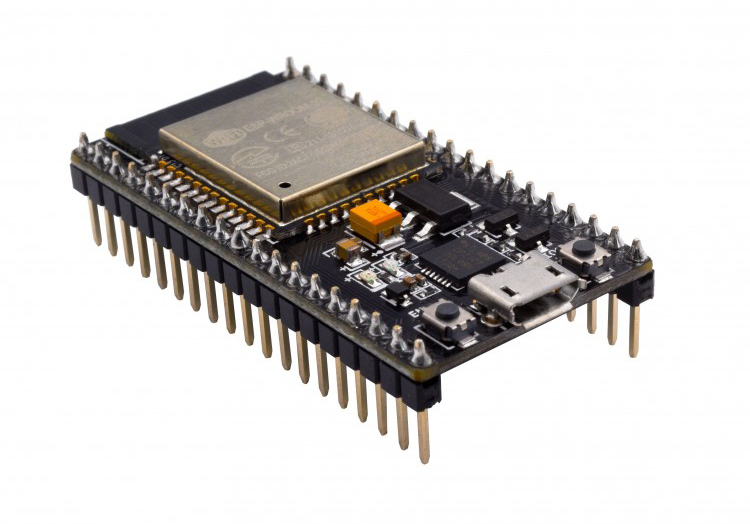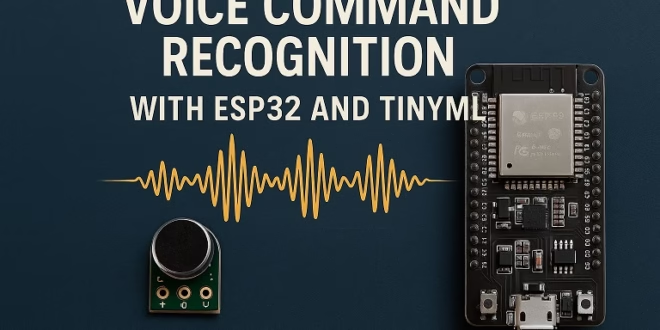
Ever wanted to make your ESP32 respond to voice commands like “ON”, “OFF”, or “LIGHT”? Thanks to TinyML, we can now run machine-learning models directly on microcontrollers — no cloud needed. In this tutorial, I’ll walk you through building a voice command recognition project using an ESP32, Edge Impulse, and a small digital microphone.
This guide is perfect if you're exploring IoT, home automation, or want to experiment with embedded AI.
What You’ll Learn
- How to collect and prepare audio data for machine learning
- How to train a keyword-spotting model in Edge Impulse
- How to deploy TinyML models to an ESP32
- How to trigger actions using recognized voice commands
Why Use TinyML on ESP32?
The ESP32 is a powerhouse for a microcontroller — dual-core, WiFi, BLE, and enough memory to run compact ML models. With TinyML, we can make it “listen” for keywords locally, meaning:
- No internet needed
- Faster response
- More private (no cloud recordings)
- Extremely low power
TinyML + ESP32 = smarter projects without depending on a server.
Hardware Requirements
- ESP32 dev board (any ESP32 WROOM/WROVER board works)
- I2S microphone such as:
- INMP441
- SPH0645
- ICS-43434
- USB cable
- Jumper wires
Optional:
- LED, relay, or any output you want to control with voice.
Step 1: Create an Edge Impulse Project
- Go to https://edgeimpulse.com
- Create a new project → choose Audio as the domain
- Set the labeling mode to “Keyword Spotting” (or just Speech)
Edge Impulse makes the workflow super clean: collect → train → deploy.
Step 2: Collect Audio Samples
You can collect samples either:
A) Using your laptop/microphone
Go to Data Acquisition → Record new audio
Record different command words such as:
- on
- off
- stop
- go
Record at least 30 samples per class, ideally 1 second long and normal speaking volume.
B) Using ESP32 (optional)
You can install the Edge Impulse CLI and stream audio from ESP32, but for beginners, I usually suggest using the browser mic — it's easier and faster.
Step 3: Generate MFCC Features
TinyML audio models usually use MFCC (Mel-Frequency Cepstral Coefficients).
Good news: Edge Impulse handles everything automatically.
- Go to Impulse Design
- Set window size: 1000ms
- Add “MFCC” as the processing block
- Add “Classification (Keras)” as the learning block
- Save and click MFCC section
- Generate features → Save Features
You'll see a nice feature graph with clear shapes for each word.
Step 4: Train the Neural Network
- Go to Training
- Start training
- Aim for at least 90% accuracy
- Tweak epochs or learning rate if needed
The default network in Edge Impulse is usually enough:
- 1D CNN
- Small footprint
- Good performance on microcontrollers
Once done, check the Confusion Matrix to confirm your commands aren’t overlapping too much.
Step 5: Deploy the Model to ESP32
This is the coolest part.
Option 1: Export as an Arduino Library
- Go to Deployment
- Choose Arduino Library
- Download the .zip file
- Import into Arduino IDE using Sketch → Include Library → Add .ZIP Library
Option 2: Use the Edge Impulse ESP32 firmware
Edge Impulse provides a ready-made ESP32 firmware for inference, but for full project customization, I recommend the Arduino library.
Step 6: Connect the I2S Microphone to ESP32
Example wiring for INMP441:
| INMP441 | ESP32 |
|---|---|
| VDD | 3.3V |
| GND | GND |
| SCK | GPIO 14 |
| WS | GPIO 15 |
| SD | GPIO 32 |
Make sure your microphone is 3.3V-compatible!
Step 7: Arduino Code for Voice Recognition
Below is a clean starter sketch using Edge Impulse’s library. Replace your-project-name_inferencing.h with your generated file.
You can now add LEDs, relays, motors — whatever action you want linked to the detected word.
Step 8: Add Actions (LED Example)
Simple and powerful!
Improving Accuracy
Here are some optional tweaks:
✔ Record samples in different tones and volumes
✔ Add “noise” samples (fan noise, background talking)
✔ Use a better microphone
✔ Add more training epochs
✔ Add a “silence” class
Conclusion
Voice command recognition on ESP32 used to sound impossible — but now, with Edge Impulse and TinyML, it’s incredibly easy to build your own offline voice assistant. You can expand this project to:
- Smart home voice control
- Kids’ toys with voice interaction
- Hands-free control panels
- Voice-activated robots