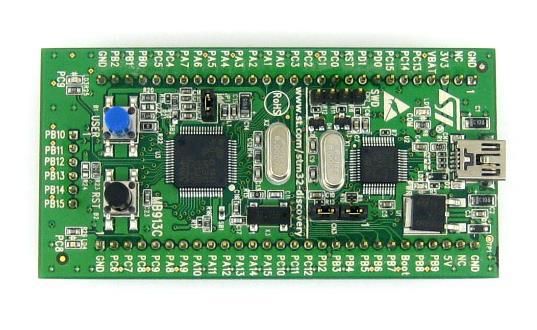
LwIP (Lightweight IP) is a small TCP/IP stack used in embedded systems like STM32. It helps devices communicate over networks using internet protocols. In this post, I will show how to set up LwIP in "raw" mode for an STM32F407 microcontroller.
What is LwIP Raw Mode?
In raw mode, LwIP uses low-level functions without an RTOS. This is perfect for small devices where you need full control of network data and don't want the overhead of an RTOS.
What You Need:
- STM32F407 microcontroller (e.g., STM32F407 Discovery board)
- STM32CubeIDE or another IDE that supports STM32
- LwIP library (this comes with the STM32Cube HAL)
Step-by-Step Setup
Step 1: Install STM32CubeIDE
Download and install STM32CubeIDE. This is an integrated development environment for STM32 microcontrollers. You will use this tool to set up your project and code for LwIP.
Step 2: Create a New Project
- Open STM32CubeIDE.
- Click File > New > STM32 Project.
- Select your STM32F407 microcontroller (e.g., STM32F407VGTx) and click Next.
- Name your project and click Finish.
Step 3: Enable Ethernet and LwIP
- Open STM32CubeMX (inside CubeIDE) to configure your STM32.
- Go to the Pinout & Configuration tab and enable Ethernet by clicking on the pin that supports Ethernet (PA1, PA2, PA7, etc.).
- Under the Middleware section, enable LwIP.
- Choose RAW API in the LwIP settings. This sets LwIP to raw mode.
- Configure the IP settings (you can use a static IP like 192.168.0.10).
- Click Generate Code.
Step 4: Add Ethernet Driver
The STM32F407 has a built-in Ethernet MAC (Media Access Controller). You will need an external PHY (physical layer) chip to connect to an Ethernet network, like the LAN8720.
Make sure the ETH HAL driver is enabled in STM32CubeMX. It will automatically handle Ethernet communication for you.
Step 5: Write LwIP Code
Next, we write the code that will use LwIP to send and receive data.
Initialize LwIP:
In your main main.c file, include the LwIP header:
#include "lwip.h"
In the main() function, call the LwIP initialization function:
MX_LWIP_Init();
Create a New TCP Server:
Use the raw API to create a TCP server that listens for connections. Example:struct tcp_pcb *pcb = tcp_new();
tcp_bind(pcb, IP_ADDR_ANY, 80); // Bind to port 80
pcb = tcp_listen(pcb);
tcp_accept(pcb, my_accept);
Define the my_accept function, which handles new connections.
Handle Incoming Data:
Inside the accept function, you will handle incoming data from clients. Example:
err_t my_recv(void *arg, struct tcp_pcb *pcb, struct pbuf *p, err_t err) {
    if (p != NULL) {
        // Process data
        tcp_recved(pcb, p->tot_len);
        pbuf_free(p);
    } else {
        tcp_close(pcb);
    }
    return ERR_OK;
}
Step 6: Compile and Flash
- Build your project by clicking the Build button.
- Flash the program to your STM32F407 board using the Debug button.
Step 7: Test the Setup
Connect your STM32F407 to your network. Open a web browser and enter the IP address you assigned earlier (e.g., 192.168.0.10). If everything is set up correctly, your STM32 should now be responding to network requests.
Here’s an example of a simple main.c file that shows how to initialize LwIP and set up a basic TCP server using the raw API on the STM32F407. This code creates a server that listens for incoming connections on port 80 and responds to any data it receives.
#include "main.h"
#include "lwip.h"
#include "tcp.h"

/* Function prototypes */
err_t my_accept(void *arg, struct tcp_pcb *newpcb, err_t err);
err_t my_recv(void *arg, struct tcp_pcb *tpcb, struct pbuf *p, err_t err);

int main(void) {
    /* Initialize the hardware (clocks, peripherals, etc.) */
    HAL_Init();
    SystemClock_Config();  // Configure system clock
    MX_GPIO_Init();        // Initialize GPIO
    MX_LWIP_Init();        // Initialize LwIP stack

    /* Create a new TCP control block */
    struct tcp_pcb *pcb = tcp_new();
    if (pcb == NULL) {
        /* Handle error if TCP PCB creation failed */
        while (1);
    }

    /* Bind the PCB to port 80 (HTTP) */
    err_t bind_err = tcp_bind(pcb, IP_ADDR_ANY, 80);  // Bind to any IP address, port 80
    if (bind_err != ERR_OK) {
        /* Handle error if bind failed */
        tcp_close(pcb);
        while (1);
    }

    /* Put the PCB into the listening state */
    pcb = tcp_listen(pcb);
    if (pcb == NULL) {
        /* Handle error if listen failed */
        while (1);
    }

    /* Set the accept callback function */
    tcp_accept(pcb, my_accept);

    /* Infinite loop */
    while (1) {
        /* Handle LwIP tasks */
        MX_LWIP_Process();
    }
}

/* Accept callback function - called when a new connection is established */
err_t my_accept(void *arg, struct tcp_pcb *newpcb, err_t err) {
    /* Set the receive callback function for the new connection */
    tcp_recv(newpcb, my_recv);
    return ERR_OK;
}

/* Receive callback function - called when data is received */
err_t my_recv(void *arg, struct tcp_pcb *tpcb, struct pbuf *p, err_t err) {
    if (p != NULL) {
        /* Process the received data */
        char *data = (char *)p->payload;
        data[p->len] = '\0';  // Null-terminate the data
        printf("Received data: %s\n", data);  // Print received data

        /* Send a response back to the client */
        const char *response = "HTTP/1.1 200 OK\r\nContent-Type: text/plain\r\n\r\nHello, World!";
        tcp_write(tpcb, response, strlen(response), TCP_WRITE_FLAG_COPY);

        /* Acknowledge that we've received the data */
        tcp_recved(tpcb, p->tot_len);

        /* Free the pbuf */
        pbuf_free(p);
    } else {
        /* If p is NULL, the connection was closed */
        tcp_close(tpcb);
    }

    return ERR_OK;
}
Troubleshooting
- No response from STM32?
- Check the Ethernet cable and PHY chip connection.
- Make sure the IP address is set correctly.
- Ensure LwIP is initialized properly in the code.
- Data loss?
- If data is not being received or sent properly, adjust the buffer sizes in LwIP settings. You can increase the size of the receive and send buffers in STM32CubeMX.
Conclusion
Setting up LwIP raw on an STM32F407 is straightforward when following these steps. By configuring Ethernet in STM32CubeMX and writing raw TCP code, you can create efficient, low-level network applications.