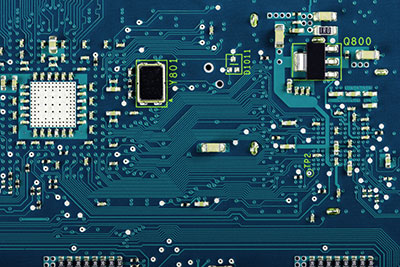
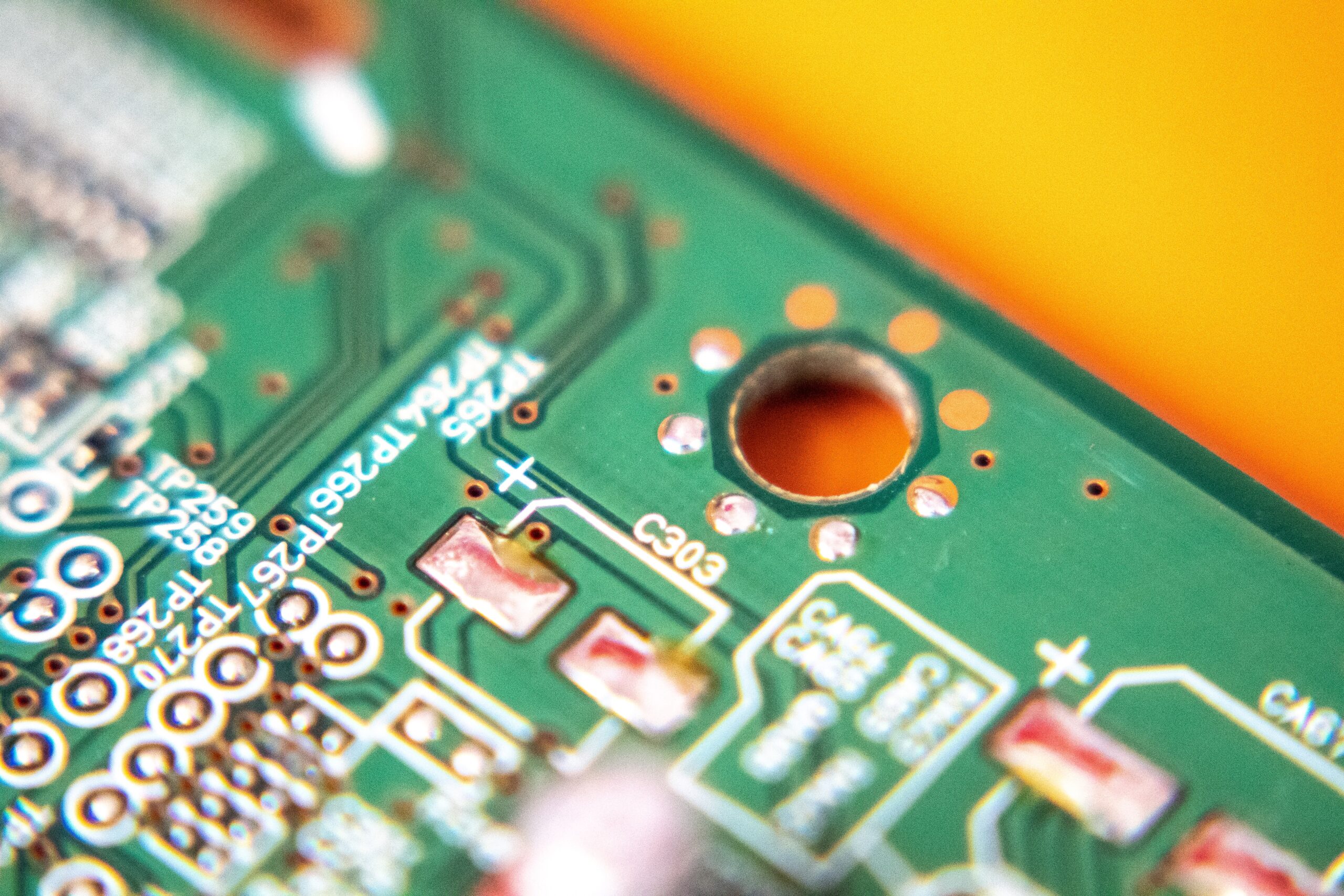
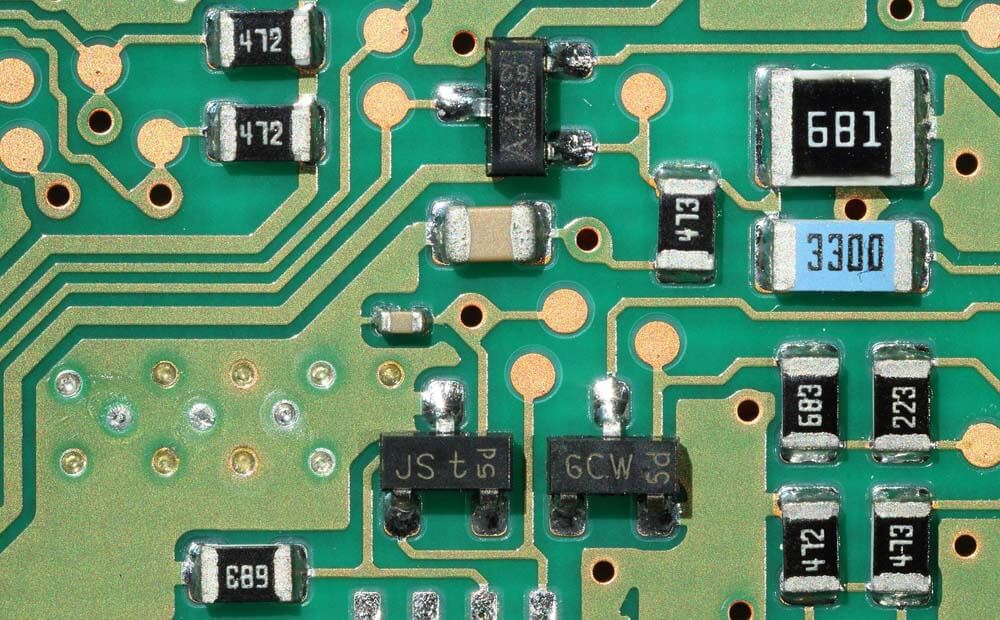
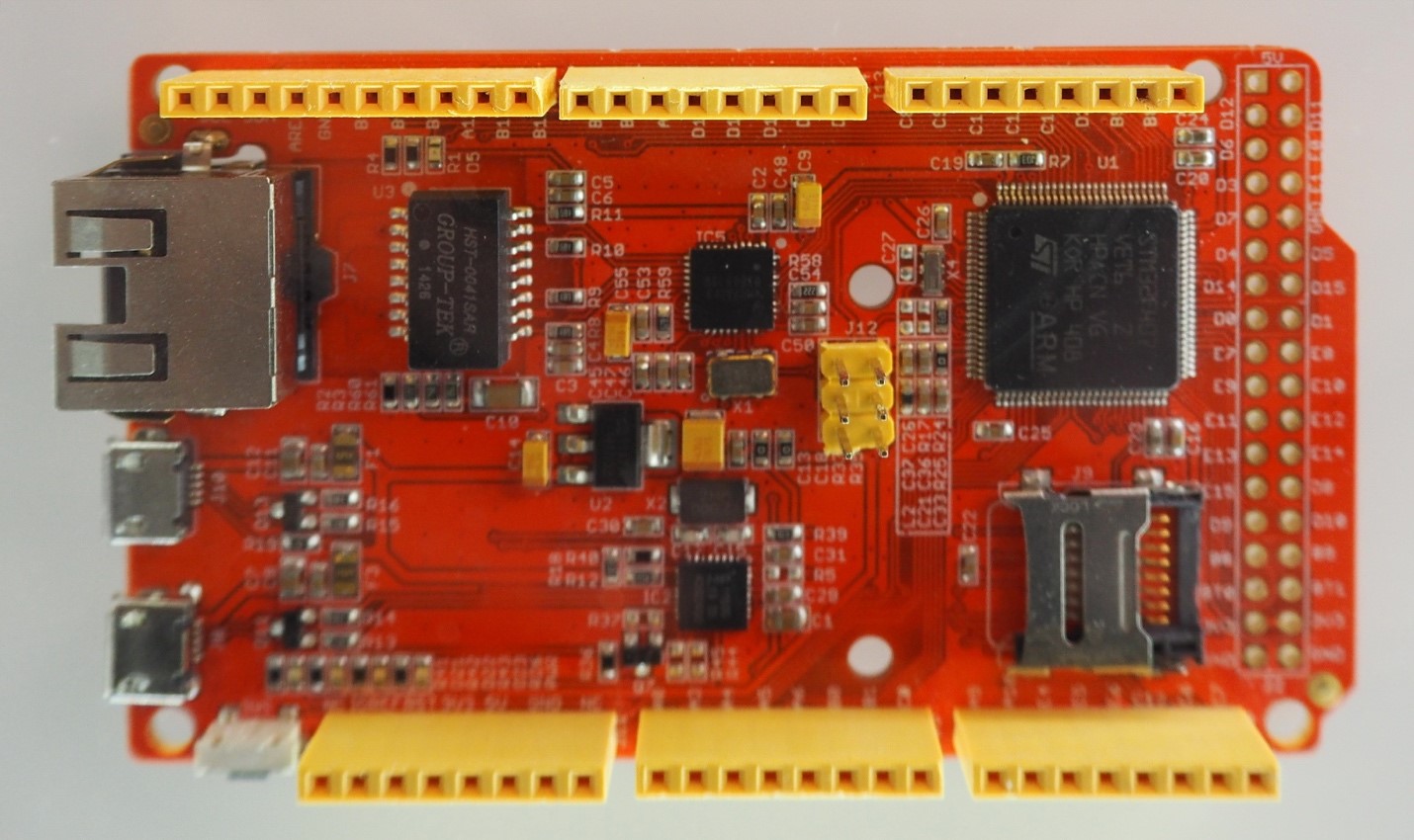
When building a prototype on a breadboard, it is easy to move jumper wires around until everything works. But once you turn that circuit into a printed circuit board, every pin choice becomes much more permanent. A poorly chosen GPIO can cause boot problems, programming issues, noisy analog readings, or layout headaches. That is why it is important to think about pin selection before routing your PCB. For a deeper PCB-focused workflow, see this guide on pinout-aware PCB design.
Many beginner PCB mistakes do not come from wrong schematics. They come from choosing pins without checking their hidden functions. Microcontroller pins often have more than one job. A pin may work as a digital output, but it may also be used during boot. Another pin may support PWM, but not ADC. Some pins are connected to onboard flash memory, USB, oscillator circuits, or programming headers. If you only look at the GPIO number, you may miss important details.
Why Pin Choice Matters in PCB Design
On development boards like Arduino, ESP32, STM32, Raspberry Pi Pico, or NodeMCU, the board layout has already solved many hardware problems for you. Power regulation, USB programming, boot mode, reset circuitry, and pin headers are already arranged in a beginner-friendly way.
But when you design your own PCB, you are responsible for those decisions. The pin you choose affects:
- Whether the microcontroller boots correctly
- Whether the board can still be programmed
- Whether serial debugging is available
- Whether analog sensors get clean readings
- Whether traces are easy or difficult to route
- Whether future firmware changes are possible
A working breadboard prototype does not always translate directly into a reliable PCB. Before finalizing your schematic, you should review each pin and ask what else it does.
Start With the Required Peripherals
The first step is to list the features your project needs. Do not assign pins randomly yet. Instead, write down the required interfaces.
For example, your project may need:
- One I2C bus for a display and sensor
- One SPI bus for an SD card module
- Two PWM outputs for motors or LEDs
- Three analog inputs
- One UART for debugging
- Several digital inputs for buttons or switches
Once you know the required peripherals, you can match them to pins that actually support those functions. This is especially important on microcontrollers where not every pin supports every feature.
For example, some pins may support digital input/output but not analog input. Some pins may support PWM but share a timer with another output. Some microcontrollers allow flexible pin mapping, while others have fixed peripheral pins.
Keep Programming and Debugging Pins Available
One of the most common PCB design mistakes is using programming pins for something else without planning for it.
On many boards, pins used for UART, SWD, JTAG, USB, reset, or boot mode are needed during programming or debugging. If you connect these pins directly to external circuits, the programmer may fail to communicate with the chip.
For example:
- UART TX/RX pins may be needed for serial upload or debugging.
- SWDIO and SWCLK pins are needed for ARM debugging.
- BOOT or reset pins may need pull-up or pull-down resistors.
- USB D+ and D− pins should not be used as regular GPIO if USB is needed.
If you must use these pins in your circuit, add protection or isolation. Series resistors, jumpers, test pads, or removable headers can save you from a board that cannot be programmed after assembly.
Watch Out for Boot-Strapping Pins
Some microcontrollers read certain pins during startup to decide how to boot. These are often called boot-strapping pins or boot mode pins.
This is common on ESP8266 and ESP32 boards. Some GPIO pins must be high or low during reset. If an external circuit pulls them in the wrong direction, the microcontroller may fail to boot.
For example, a button, transistor, sensor, or LED connected to a boot-sensitive pin may accidentally change the startup state. The circuit may work after boot, but the board may not start reliably.
Before using a GPIO, check whether it has a required startup state. If it does, avoid connecting circuits that can pull the pin incorrectly during reset.
Separate Analog and Noisy Signals
Analog pins need more care than ordinary digital pins. If your PCB has sensors, potentiometers, battery voltage monitoring, or analog audio input, pin placement and routing matter.
Analog signals should be kept away from noisy traces such as:
- PWM motor outputs
- Switching regulator traces
- Relay coils
- High-current LED strips
- Fast SPI clock lines
- Wi-Fi or RF sections
Choosing an analog-capable pin is only the first step. You should also route the analog trace carefully and provide proper filtering if needed. A short trace, nearby ground reference, and optional RC filter can improve ADC stability.
Think About Trace Routing Early
Pin selection is not only a firmware decision. It is also a PCB layout decision.
A pin may be electrically correct but physically inconvenient. For example, if your I2C sensor connector is on the left side of the PCB but your chosen I2C pins are on the far right side of the microcontroller, you may need long crossing traces. This can make routing harder and increase noise.
Before finalizing the schematic, roughly imagine where the parts will be placed:
- Put connectors near the edge of the board.
- Choose nearby pins when possible.
- Keep high-speed traces short.
- Avoid routing signals under noisy components.
- Group related signals together.
For example, if an OLED display uses I2C, place its connector near the I2C pins. If a motor driver uses PWM and direction pins, choose pins that route cleanly to the driver.
Good pin selection can make the PCB layout cleaner before you even start routing.
Reserve Pins for Future Expansion
It is tempting to use every available GPIO on the first version of a board. But leaving a few spare pins can be very helpful.
A spare pin can be used later for:
- A status LED
- A buzzer
- A chip select line
- A wake-up input
- A debug signal
- A hardware revision feature
- A factory test point
If your board has extra space, bring unused pins to test pads or a small header. Even if you do not populate the header, the pads can help during debugging.
Use Pull-Up and Pull-Down Resistors Properly
Some pins should not be left floating. Buttons, switches, enable pins, interrupt pins, and boot pins often need defined logic levels.
Many microcontrollers have internal pull-up or pull-down resistors, but relying only on firmware may not always be enough. During reset, before your code runs, the pin may still float. For critical pins, use external resistors.
This is especially important for:
- Reset pins
- Boot mode pins
- Enable pins
- Chip select pins
- Interrupt lines
- Inputs connected to long wires
A 10k resistor is commonly used for pull-ups and pull-downs, but the best value depends on the circuit.
Avoid Pins With Hidden Board Connections
Development boards often connect certain GPIOs to onboard components. A pin may already be connected to an LED, USB interface, flash chip, PSRAM, voltage divider, or other hardware.
For example, on some boards:
- GPIOs may be connected to onboard flash memory.
- One pin may control the built-in LED.
- ADC pins may already be connected to voltage measurement circuits.
- UART pins may be connected to a USB-to-serial converter.
- Some pins may be input-only.
Using these pins without checking the board schematic can cause strange behavior. The circuit may appear correct, but the onboard connection may interfere with your external component.
Make a Pin Assignment Table
Before drawing the final schematic, create a simple pin assignment table. This helps you catch conflicts early.
Example format:
| Function | Selected Pin | Reason | Notes |
|---|---|---|---|
| I2C SDA | GPIO21 | Default I2C pin | Shared by OLED and sensor |
| I2C SCL | GPIO22 | Default I2C pin | Add pull-up resistors |
| Status LED | GPIO2 | Available output | Check boot behavior |
| Button Input | GPIO13 | Digital input | Use pull-up resistor |
| Motor PWM | GPIO25 | PWM capable | Keep trace away from ADC |
| Battery Sense | ADC1_CH0 | Analog input | Add voltage divider |
This table is useful for both hardware and firmware development. It also makes the project easier to document later.
Check the Pinout Before Routing
Once the schematic is complete but before routing the PCB, review every pin again. Ask these questions:
- Does this pin support the required function?
- Is it used during boot or programming?
- Is it connected to anything else on the board?
- Does it need a pull-up or pull-down resistor?
- Is the trace route reasonable?
- Is it safe during reset?
- Will this pin still work if the firmware changes later?
This review only takes a few minutes, but it can prevent an expensive PCB revision.
Example: Choosing Pins for a Sensor Board
Suppose you are designing a small ESP32-based sensor board with:
- BME280 sensor over I2C
- OLED display over I2C
- Status LED
- Push button
- Battery voltage monitoring
- UART debug header
A good approach would be:
- Use standard I2C pins for the BME280 and OLED.
- Add proper pull-up resistors on SDA and SCL.
- Use a safe digital output for the status LED.
- Avoid boot-strapping pins for the push button.
- Use an ADC-capable pin for battery monitoring.
- Keep UART pins available through a header.
- Add test pads for reset, boot, 3.3V, GND, TX, and RX.
This approach keeps the design easier to program, debug, and manufacture.
Final Thoughts
Choosing microcontroller pins is not just a firmware task. It is part of hardware design. A pin that works on a breadboard may cause problems on a PCB if it affects boot mode, programming, analog performance, or routing.
Before routing your board, spend time checking the pinout, peripheral functions, boot requirements, and physical layout. Good pin planning makes your PCB cleaner, easier to debug, and more reliable.
A few minutes of pinout review can save days of troubleshooting later.