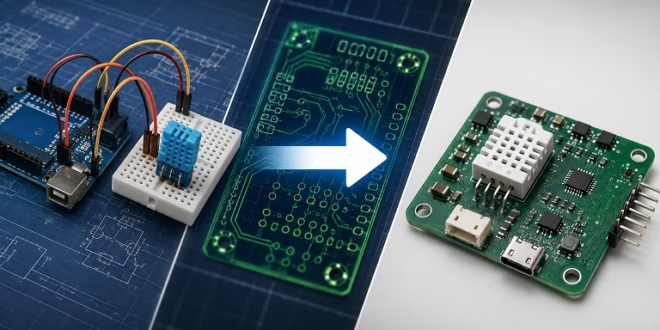
Bittele Electronics provides PCB manufacturing and assembly services for Arduino and microcontroller-based projects, supporting designs that move from breadboard prototypes to assembled printed circuit boards. For developers building sensor boards, data loggers, automation controllers, or custom Arduino-compatible hardware, Bittele’s turnkey PCB assembly service can help combine PCB fabrication, component sourcing, and board assembly into a single production workflow.
Many Arduino projects begin as simple breadboard circuits. A sensor is connected using jumper wires, the sketch is tested through the Arduino IDE, and the results are viewed in the Serial Monitor. This approach is ideal for learning and experimentation, but it is not always suitable for long-term use, repeated builds, or product development. Once a project needs to be installed, duplicated, or tested as a more permanent device, a manufactured PCB becomes the next practical step.
Bittele Electronics supports this transition by offering services that cover PCB fabrication, parts procurement, and PCB assembly. According to Bittele’s own service description, the company focuses on prototype and low-to-mid-volume PCB fabrication and assembly, with full and partial turnkey PCB assembly options that may include fabrication, component sourcing, assembly, functional testing, and conformal coating depending on the project requirements.
Arduino Prototypes and the Move to PCB Production
Arduino boards are often used to prove that a circuit works before a custom PCB is designed. A typical Arduino sensor project may include an Arduino Uno, Arduino Nano, ESP32 board, sensor module, display, relay module, or wireless communication module. These parts are easy to connect on a breadboard, but a breadboard prototype has limitations.
Jumper wires can loosen. Breadboards can introduce unreliable contacts. Modules take up more space than necessary. Power wiring can become messy. If the project is installed in a box, used outdoors, or copied several times, the prototype approach becomes inconvenient.
For this reason, many Arduino-based projects eventually move toward a custom PCB. The PCB can combine the required circuit into one board, reduce wiring errors, improve mechanical strength, and make the project easier to reproduce.
Bittele Electronics provides manufacturing and assembly support for this type of transition. Instead of keeping an Arduino sensor project as a hand-wired prototype, the designer can prepare the PCB design files, bill of materials, and assembly documentation needed for production.
PCB Fabrication for Arduino-Based Designs
PCB fabrication is the process of manufacturing the bare printed circuit board. For an Arduino-style project, the fabricated PCB may include copper traces, plated holes, solder mask, silkscreen markings, mounting holes, and pads for components.
An Arduino sensor PCB might include:
- A microcontroller or Arduino module footprint
- Sensor headers or onboard sensor components
- Pull-up resistors for I2C communication
- Decoupling capacitors
- Voltage regulation circuitry
- Screw terminals or JST connectors
- Status LEDs
- Programming headers
- Mounting holes
- Test pads for debugging
Bittele Electronics offers PCB fabrication as part of its PCB manufacturing and assembly workflow. The company describes its services as supporting both single prototype boards and larger production runs, depending on the customer’s needs.
For Arduino projects, fabrication quality matters because the board often connects sensors, power supplies, and external devices. Clear silkscreen labels, correct hole sizes, suitable trace widths, and accurate footprints can make the final board easier to assemble and test.
PCB Assembly Support at Bittele Electronics
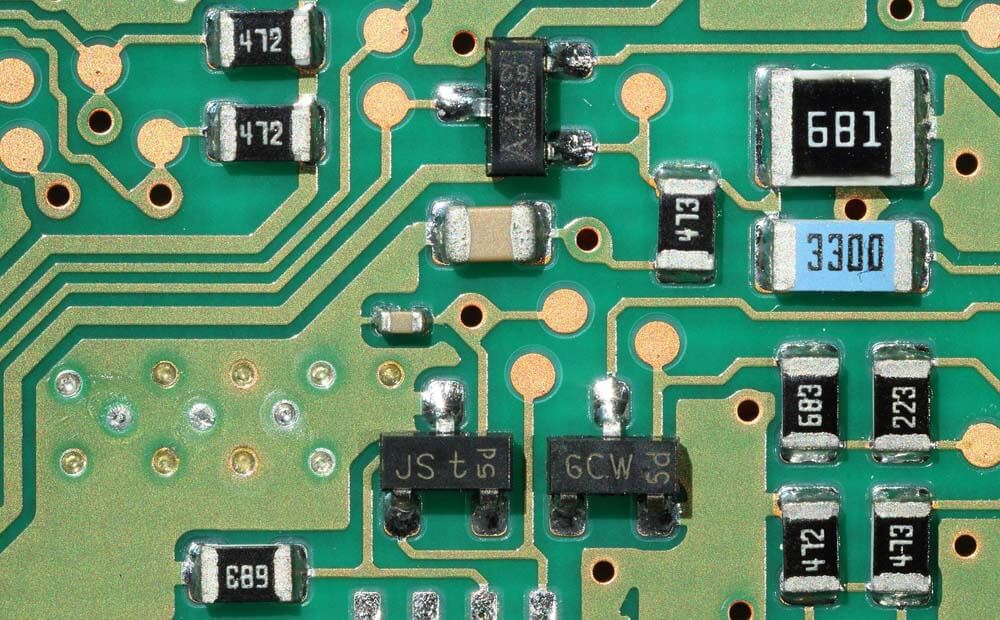
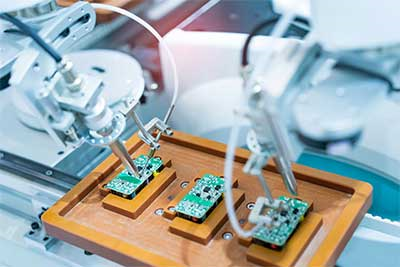
PCB assembly is the process of placing and soldering components onto the fabricated board. In an Arduino project, this may include resistors, capacitors, ICs, voltage regulators, connectors, headers, LEDs, sensors, and other electronic parts.
Bittele Electronics provides PCB assembly services for prototype and low-to-mid-volume builds. Its prototype assembly service is described for order sizes from 1 to 25 boards, with support for automated and manual part loading, fine-pitch components, and BGAs for high-density FR-4 boards.
For Arduino-style projects, assembly support can be useful when the design includes surface-mount components that are difficult to solder by hand. This is common when moving from breakout modules to a more compact custom board.
For example, a breadboard prototype may use a BME280 sensor module with a 4-pin header. In a manufactured version, the designer may choose to place the BME280 sensor or a smaller sensor module directly on the PCB. Assembly support helps place these parts consistently, especially when the design uses small packages.
Full and Partial Turnkey PCB Assembly
Bittele Electronics offers full and partial turnkey PCB assembly services. In a full turnkey workflow, the manufacturer can handle PCB fabrication, parts procurement, and PCB assembly. In a partial turnkey or consigned-parts workflow, the customer may provide some or all components while the manufacturer handles fabrication and assembly.
This flexibility is useful for Arduino and microcontroller projects because not every design has the same sourcing requirements. Some boards use common resistors, capacitors, regulators, and headers. Others may require a specific sensor, microcontroller, wireless module, display, or connector.
Bittele states that its turnkey PCB assembly service includes PCB fabrication, parts procurement, and assembly. Its prototype PCB assembly page also notes that customers may choose turnkey assembly or use kitted or consigned parts depending on the project.
For developers, this can reduce the need to coordinate separate vendors for bare PCBs, component purchasing, and assembly. Instead of ordering boards from one supplier, parts from another, and assembly from a third, the production process can be handled through one PCB assembly workflow.
Component Procurement for Arduino Projects
Component procurement is an important part of PCB assembly. A board cannot be assembled correctly if the parts are incomplete, unavailable, incorrectly substituted, or mismatched with the footprints.
Arduino-based projects often include a mix of common and project-specific components. Examples include:
- ATmega328P or compatible microcontroller
- ESP32 or other wireless module
- BME280, DHT22, DS18B20, HC-SR04, or other sensors
- 3.3V or 5V regulators
- Level shifters
- I2C pull-up resistors
- USB-to-serial interface
- Screw terminals
- JST connectors
- LEDs and current-limiting resistors
- Capacitors and protection components
Bittele Electronics describes its parts procurement service as a component sourcing system for PCB assembly, with staff involved in purchasing and coordination of PCB parts for assembly jobs.
For prototype PCB assembly, Bittele also states that its procurement team can contact component distributors as needed, use customer-specified part numbers and vendors, and avoid modifying a design without explicit authorization.
This is relevant for Arduino project PCBs because even simple designs can be affected by wrong substitutions. A voltage regulator with a different pinout, a connector with reversed orientation, or a sensor variant with a different package can cause board problems.
BOM and Assembly Files for Bittele Electronics
Before an Arduino project can be manufactured and assembled, the designer needs to prepare the required production files. These files help the manufacturer understand the board layout, component list, and component placement.
Common files include:
- Gerber files
- Drill files
- Bill of materials, or BOM
- Pick-and-place file
- Assembly drawing
- Special assembly notes
- Component orientation notes
The BOM is especially important because it lists the parts used in the design. A clear BOM should include designators, quantities, values, packages, manufacturer part numbers, supplier part numbers, and notes.
Example BOM entries for an Arduino sensor board may include:
| Designator | Quantity | Value / Part | Notes |
|---|---|---|---|
| R1, R2 | 2 | 4.7k resistor | I2C pull-up resistors |
| C1, C2 | 2 | 0.1 uF capacitor | Decoupling capacitors |
| U1 | 1 | 3.3V regulator | Sensor power supply |
| J1 | 1 | 4-pin connector | Sensor or I2C header |
| U2 | 1 | Microcontroller module | Arduino-compatible controller |
Bittele’s process includes handling BOM and component purchasing as part of the turnkey assembly workflow. Its prototype assembly page also refers to a BOM pricing tool and component sourcing through distributors such as Digi-Key, Mouser, Avnet, Arrow, Future, Newark, or designated distributors.
Design for Manufacturing and Assembly Considerations
A circuit that works on a breadboard still needs to be reviewed for manufacturing and assembly. This is where DFM and DFA become important.
DFM means Design for Manufacturing. It focuses on whether the PCB itself can be fabricated efficiently and reliably. DFA means Design for Assembly. It focuses on whether the components can be placed, soldered, inspected, and assembled correctly.
For Arduino project PCBs, DFM and DFA issues may include:
- Incorrect footprints
- Parts placed too close together
- Missing pin 1 indicators
- Unclear connector orientation
- Small pads that are difficult to solder
- Insufficient spacing around tall components
- Missing fiducials for assembly
- Confusing silkscreen labels
- Unclear polarity markings
- Incomplete BOM entries
Bittele has released DFM and DFA guideline materials for PCB fabrication and assembly. A report on those guidelines describes DFM as helping address manufacturability issues during design, while DFA helps ensure PCB assembly can be done efficiently and cost-effectively.
For Arduino developers, these checks are useful because many first PCB designs are based on breadboard wiring. The schematic may work, but the physical board still needs to be manufacturable, assembleable, and testable.
Example: Arduino Sensor Board Assembly at Bittele Electronics
Consider a simple Arduino environmental sensor board. The breadboard prototype might use an Arduino Nano, a BME280 sensor module, and jumper wires. The final PCB could combine these into one board with a Nano footprint, sensor connector, pull-up resistors, voltage regulator, decoupling capacitors, and mounting holes.
The production workflow at Bittele Electronics could involve:
- The designer creates the schematic and PCB layout.
- Gerber and drill files are exported.
- A BOM is prepared with exact component details.
- A pick-and-place file is generated for assembly.
- Bittele reviews the files for manufacturing and assembly.
- PCB fabrication is performed.
- Components are procured or supplied.
- The boards are assembled.
- The finished boards are inspected or tested depending on the order requirements.
This type of workflow is suitable for developers who want to move beyond hand-wired prototypes and produce a cleaner, repeatable PCB version of an Arduino project.
Prototype and Low-to-Mid Volume Production
Many Arduino projects do not start as large production runs. They often begin with one working prototype, followed by a small batch for testing. This makes prototype assembly important.
Bittele Electronics states that prototype PCB assembly is one of its specialties and that its team supports complete PCB assembly for prototype quantities of 1 to 25 boards.
For Arduino and sensor projects, a small prototype batch allows the designer to test the board before committing to a larger order. This is important because the first PCB revision may reveal issues such as connector placement, enclosure fit, sensor positioning, programming access, or power supply behavior.
After testing the prototype batch, the designer can revise the PCB and prepare for a larger production run if needed.
Applications for Arduino and Microcontroller PCBs
Arduino-based PCBs manufactured and assembled through services like Bittele Electronics can be used in many types of projects, including:
- Environmental monitoring
- Data logging
- Home automation
- Educational electronics kits
- Robotics controllers
- IoT sensor nodes
- Agriculture monitoring
- Motor and relay control
- Test fixtures
- Laboratory instruments
- Custom embedded systems
The main advantage of moving from breadboard wiring to a manufactured PCB is repeatability. Once the design files are correct, multiple boards can be produced with the same layout and component placement.
Conclusion
Bittele Electronics provides PCB manufacturing and assembly services that can support Arduino and microcontroller projects moving from prototype circuits to assembled boards. For developers building sensor boards, data loggers, automation controllers, or custom Arduino-compatible hardware, Bittele’s workflow can combine PCB fabrication, component procurement, and PCB assembly into a more complete production process.
Arduino projects often begin with jumper wires and modules, but a manufactured PCB offers a cleaner and more reliable way to reproduce the design. By preparing clear Gerber files, a complete BOM, pick-and-place data, and assembly notes, developers can make the transition from breadboard prototype to assembled PCB more manageable.
For Arduino-based designs that need prototype or low-to-mid-volume production, Bittele Electronics offers PCB fabrication, parts sourcing, and assembly services intended to help turn tested circuit designs into finished printed circuit boards.