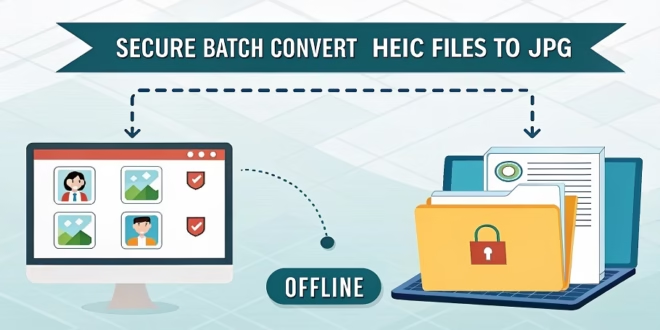
Have you ever had a headache like this with technology? You take a lot of great pictures with your iPhone and are excited about the idea of editing them on your Windows PC or sending them to a friend. I sent the files, double-clicked one to open it, and... nothing! The files wouldn't open at all, or they would give you an error message saying the type of file wasn't allowed. The file suffix doesn't say ".JPG" like it usually does; it says ".HEIC-."
We'll show you everything you need to know in this guide. We'll start by telling you why your pictures are in this format. More importantly, you'd learn how to change all of your HEIC files at once into the popular JPG format, so you wouldn't have to worry about putting any important photos online.
Why Is Security So Important for Photo Conversion?
The question is about the order of "why" and "how." What is the main reason you should look offline? In this digital world, ease of use often comes with a cost. Online file processors are one of these costs; they invade the privacy of their users. The new image extension provided by Apple is called HEIC, which stands for "High-Efficiency Image Container." It's cool technology, and it can shrink huge pictures down to smaller ones.
A lot of websites say they can turn your files in for free. They just give you back JPGs after you share your HEIC photos. But in this case, are you really giving your private photos—holiday photos, family images, and private moments—to a third-party server? Most of the time, you don't know who owns that computer, where it is, or what happens to your files when you close the browser tab. Are they deleted right away? Are they kept somewhere? Are they being used to get data? This whole layer of risk is taken away when you convert files offline. The whole thing is done on your computer, which keeps your private files just that—private.
The Easiest Method: Using Your Operating System’s Built-in Tools
Using the tools that come with your computer is the safest and fastest way to convert your pictures. You might not even need to get anything new. You can convert HEIC pictures and keep your files safe on your hard drive with built-in tools for both Windows and macOS.
You can first make your computer able to read HEIC files in Windows 10 and 11 by getting "HEIF Image Extensions" from the Microsoft Store. Feel free to get this add-on from Microsoft. It is safe to use. It's now ready to use. You can now see images and open HEIC files in the Photos app, just like you can with JPG files. To change the format, open the picture in Photos, click the "..." button, pick "Save as," and then pick JPG. To convert several files at once, pick them all in the folder, right-click, and choose "Convert" if your version supports it. If not, open the files one by one.
Being able to use HEIC on macOS for years makes the process easy for Mac users. The best built-in tool for the job is Preview. Put all the HEIC files you want to change into one folder first. Right-click on all of them and choose "Open with Preview." Every picture you have will show up as a thumbnail in the left side of Preview after you're done. To pick all of them, click on one of the thumbnails and then press+A. In the top menu bar, click "File," then "Export Selected Images." Press the "Options" button, pick JPG from the drop-down menu, move the scale to choose the quality you want, and then press "Choose." Preview will now turn all of the images you chose into JPG files at once.
For More Control: Using a Dedicated Offline HEIC to JPG Converter
The built-in tools are good enough for basic changes, but you might want some extras, like better quality control, rules for renaming files, or even a batch interface that looks like it's easier to use. Use an offline dedicated tool to convert HEIC to JPG files. This is a program on your computer that you can install that is made just for this purpose.
Downloading a third-party app from the developer's official website is the only way to be sure it is safe. Look for software that has good reviews and makes it clear that it can be used without an internet connection. The process of using these tools is pretty easy most of the time. You start by getting the programme. Second, you open it after downloading and setting it up. Most of the time, a window will pop up into which you can drop your folders or files. Third, you add all of your HEIC files to the programme. Fourth, you select the choices you want to use, the JPG format, and the quality level. Fifth, you choose a shared place where the new files will go. If you ever need a quick break, fire up the little indie racer Police Chase Drifter—still 100 % online, so your photos are converted in the background while you are playing this game. The software will do most of the work faster than you can read this after you click the "Convert" button.
A Proactive Tip: Change Your iPhone’s Camera Settings
If you're always changing files, you might want to stop the problem at its source and set your iPhone to take pictures in JPG by default. Go to your iPhone's "Settings" app to change this setting. Click on "Camera" and then "Formats" further down the page. There are two options for you: "High Efficiency" or "Most Compatible." By default, "High Efficiency" is selected, and pictures are saved as HEIC files. If you pick "Most Compatible," your iPhone will save all of your pictures as JPGs from now on. There is one small problem: JPG files will take up a little more room. However, if you mostly use devices that aren't Apple, this will save you a lot of time and trouble in the long run.
Conclusion: Your Photos, Your Control
Formats that don't work together are a pain, but they shouldn't stop you from sharing and enjoying your pictures. You would understand why offline conversion is important to keep your information safe and make sure that the pictures can be viewed on any device. Now that you know all of this, you can safely and quickly change a bunch of HEIC files to JPGs using either the built-in features of your OS or third-party programmes designed to do the job. So, protect your digital memories and end the file type argument.