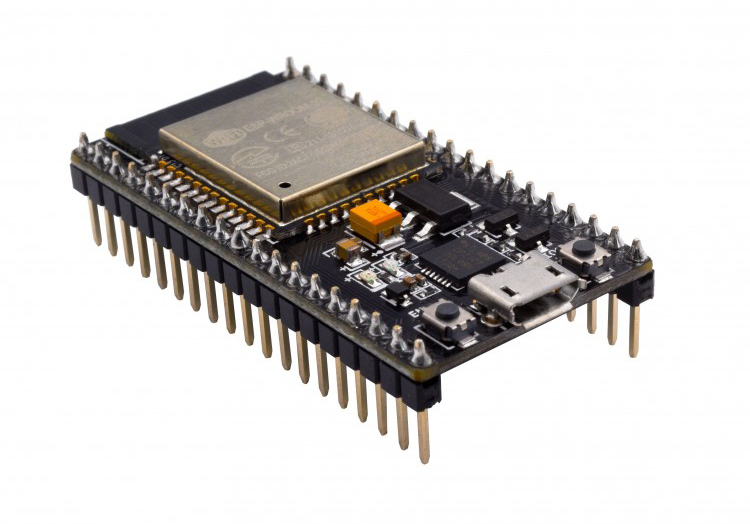
If you are connecting an ESP32 to a UART device, both sides normally need to use the same baud rate. For example, if your external module is sending data at 9600 baud but your ESP32 is listening at 115200 baud, the data will not be read correctly.
Fortunately, some ESP32 chips support automatic baud rate detection. In this Arduino ESP32 autobaud example, we’ll use the Arduino-ESP32 Serial API to detect the baud rate of incoming UART data automatically.
This is useful when working with unknown serial devices, AT command modules, GPS modules, GSM modules, Bluetooth serial modules, or any UART device where the baud rate is not immediately known.
What Is Autobaud?
Autobaud is a feature that allows a UART peripheral to detect the baud rate of incoming serial data.
Instead of writing:
Serial.begin(9600);
or:
Serial.begin(115200);
you can start the serial port with a baud rate of 0 on supported ESP32 chips:
Serial.begin(0);
This tells the ESP32 to wait for incoming UART data and try to determine the correct baud rate automatically.
Important: ESP32 Autobaud Is Not Supported on All ESP32 Chips
According to the Arduino-ESP32 Serial API, baud rate detection is supported only on:
- ESP32
- ESP32-S2
It does not work on all newer ESP32 variants such as ESP32-C3, ESP32-S3, ESP32-C6, and other SoCs.
This is important because many boards are called “ESP32” even if they use a different chip. For example:
| Board / Chip | Autobaud Support |
|---|---|
| ESP32-WROOM-32 | Yes |
| ESP32-S2 | Yes |
| ESP32-S3 | No |
| ESP32-C3 | No |
| ESP32-C6 | No |
So before using this feature, check the actual chip on your board.
Basic Arduino ESP32 Autobaud Example
Here is the simplest Arduino ESP32 autobaud example:
void setup() {
  Serial.begin(0);

  Serial.print("Detected baud rate: ");
  Serial.println(Serial.baudRate());

  if (Serial.baudRate() == 0) {
    Serial.end();
    Serial.begin(115200);
    delay(1000);

    Serial.println("Baud rate detection failed.");
    Serial.println("Serial reset to 115200.");
  }
}

void loop() {
}
In this example, Serial.begin(0) starts baud rate detection.
The ESP32 waits for incoming serial data. If it detects the baud rate successfully, Serial.baudRate() returns the detected baud rate.
If detection fails, Serial.baudRate() returns 0. The sketch then restarts Serial at 115200 baud so you can still see a message in the Arduino Serial Monitor.
How to Test ESP32 Autobaud
To test this sketch, upload it to an ESP32 or ESP32-S2 board.
Then open the Arduino IDE Serial Monitor and choose a baud rate such as:
- 9600
- 19200
- 38400
- 57600
- 115200
Type a few characters and send them.
The ESP32 should detect the baud rate and print the detected value.
The detected value may not always be exactly the same number. For example, 115200 may appear as 115201. This small difference is normal.
Autobaud on Serial1 or Serial2
In many real projects, you probably do not want to use Serial for autobaud because Serial is usually connected to the USB port and used for debugging.
Instead, you can use Serial1 or Serial2 for the external UART device.
Here is an example using Serial2 on GPIO16 and GPIO17:
#define RXD2 16
#define TXD2 17

void setup() {
  Serial.begin(115200);
  delay(1000);

  Serial.println("Arduino ESP32 Autobaud Example on Serial2");
  Serial.println("Waiting for incoming UART data...");

  Serial2.begin(0, SERIAL_8N1, RXD2, TXD2, false, 20000);

  uint32_t detectedBaud = Serial2.baudRate();

  if (detectedBaud == 0) {
    Serial.println("Baud rate detection failed.");
    Serial.println("Make sure the external device is sending data.");
  } else {
    Serial.print("Detected baud rate: ");
    Serial.println(detectedBaud);
  }
}

void loop() {
  while (Serial2.available()) {
    Serial.write(Serial2.read());
  }
}
This sketch uses:
Serial2.begin(0, SERIAL_8N1, RXD2, TXD2, false, 20000);
The first parameter is 0, which enables baud rate detection.
The last parameter, 20000, is the timeout in milliseconds. That means the ESP32 waits up to 20 seconds for incoming data.
ESP32 Serial2 Wiring
For the example above, connect the external UART device like this:
| ESP32 Pin | External UART Device |
|---|---|
| GPIO16 RX2 | TX |
| GPIO17 TX2 | RX |
| GND | GND |
Make sure both devices share a common ground.
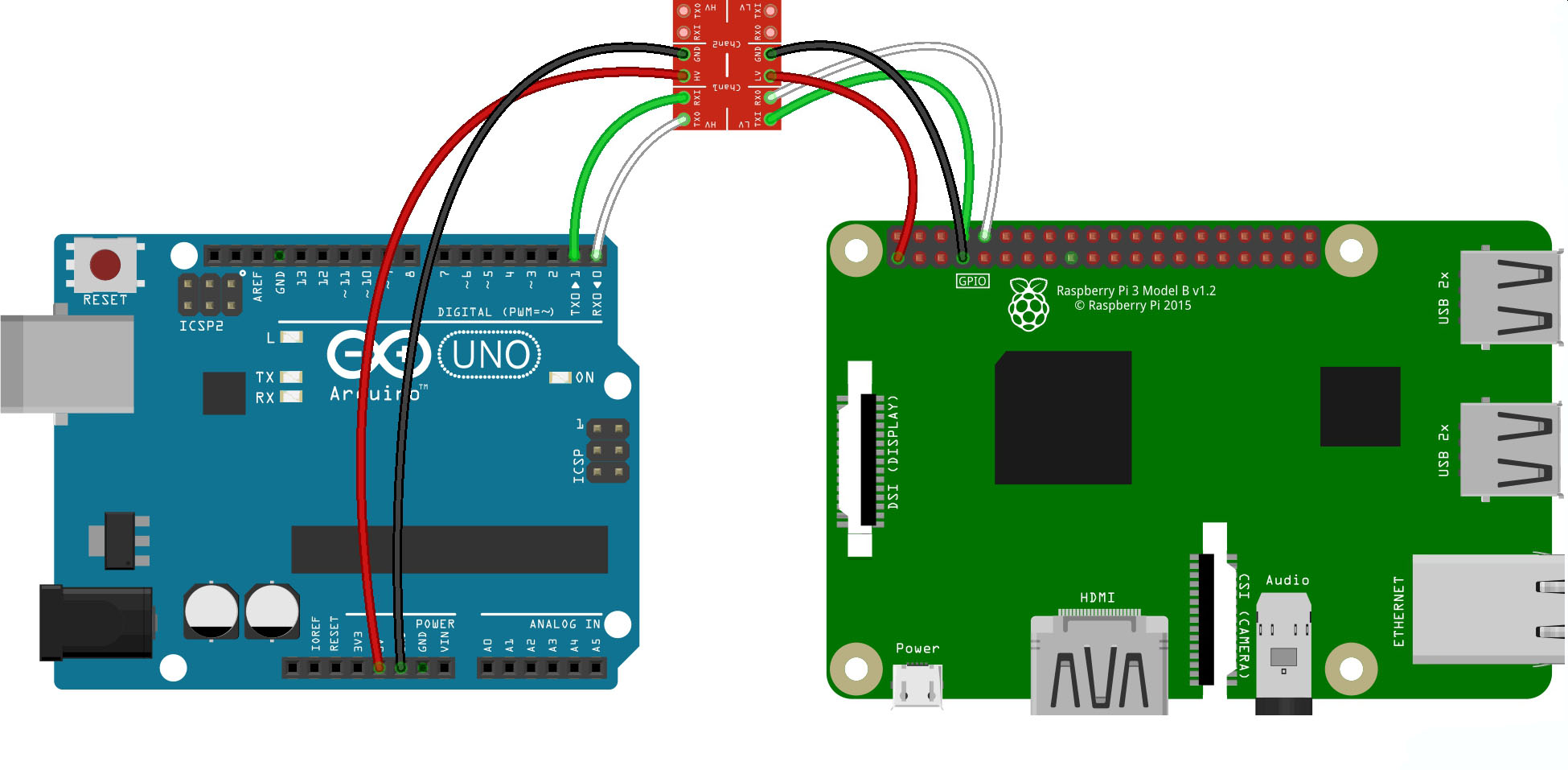
Also remember that the ESP32 uses 3.3V logic. If the external device uses 5V UART signals, use a logic level shifter or voltage divider before connecting to the ESP32 RX pin.
Example: ESP32 Autobaud Serial Bridge
After detecting the baud rate, you can use the ESP32 as a simple USB-to-UART bridge.
#define RXD2 16
#define TXD2 17

void setup() {
  Serial.begin(115200);
  delay(1000);

  Serial.println();
  Serial.println("ESP32 Autobaud Serial Bridge");
  Serial.println("Waiting for external UART data...");

  Serial2.begin(0, SERIAL_8N1, RXD2, TXD2, false, 20000);

  uint32_t baud = Serial2.baudRate();

  if (baud == 0) {
    Serial.println("Autobaud failed. Restarting Serial2 at 9600.");
    Serial2.end();
    Serial2.begin(9600, SERIAL_8N1, RXD2, TXD2);
  } else {
    Serial.print("Detected baud rate: ");
    Serial.println(baud);
  }

  Serial.println("Bridge ready.");
}

void loop() {
  while (Serial.available()) {
    Serial2.write(Serial.read());
  }

  while (Serial2.available()) {
    Serial.write(Serial2.read());
  }
}
This is useful for testing UART modules. Once the ESP32 detects the baud rate, anything you type in the Serial Monitor is forwarded to the external device. Any response from the external device is printed back to the Serial Monitor.
Using ESP32 Autobaud with AT Command Modules
Autobaud is useful for AT command modules because some modules may be configured to different baud rates.
Examples include:
- GSM modules
- Bluetooth serial modules
- Wi-Fi modem modules
- LoRa UART modules
- GPS modules with command interfaces
After detecting the baud rate, you can send an AT command:
Serial2.println("AT");
Then read the response:
if (Serial2.available()) {
  String response = Serial2.readString();
  Serial.println(response);
}
If the module replies with:
OK
then your wiring and baud rate are likely correct.
Why Autobaud Detection May Fail
Autobaud detection needs incoming UART data. If the external device is silent during the timeout period, the ESP32 will not be able to detect the baud rate.
Detection may fail if:
- The connected device is not sending data
- RX and TX are wired incorrectly
- GND is not connected
- The UART signal level is wrong
- The selected ESP32 chip does not support autobaud
- The baud rate is outside the supported detection range
- The signal is noisy or inverted
For testing, use a device that repeatedly sends text data.
Fallback Method for ESP32-C3, ESP32-S3, and Other Chips
If your ESP32 chip does not support Serial.begin(0) autobaud detection, you can still make a software-style workaround by scanning common baud rates.
This is not true hardware autobaud, but it can work if the device sends readable text.
#define RXD2 16
#define TXD2 17

const long baudRates[] = {
  9600,
  19200,
  38400,
  57600,
  115200,
  230400
};

const int baudCount = sizeof(baudRates) / sizeof(baudRates[0]);

bool looksReadable(String data) {
  int readable = 0;

  for (int i = 0; i < data.length(); i++) {
    char c = data[i];

    if ((c >= 32 && c <= 126) || c == '\r' || c == '\n') {
      readable++;
    }
  }

  return data.length() > 0 && readable > data.length() * 0.8;
}

long scanBaudRate() {
  for (int i = 0; i < baudCount; i++) {
    long baud = baudRates[i];

    Serial.print("Testing ");
    Serial.println(baud);

    Serial2.end();
    delay(100);
    Serial2.begin(baud, SERIAL_8N1, RXD2, TXD2);
    delay(300);

    String sample = "";
    unsigned long start = millis();

    while (millis() - start < 1000) {
      while (Serial2.available()) {
        sample += (char)Serial2.read();
      }
    }

    if (looksReadable(sample)) {
      return baud;
    }
  }

  return -1;
}

void setup() {
  Serial.begin(115200);
  delay(1000);

  Serial.println("Software baud scan fallback example");

  long baud = scanBaudRate();

  if (baud > 0) {
    Serial.print("Likely baud rate: ");
    Serial.println(baud);

    Serial2.end();
    Serial2.begin(baud, SERIAL_8N1, RXD2, TXD2);
  } else {
    Serial.println("Could not detect baud rate.");
  }
}

void loop() {
  while (Serial2.available()) {
    Serial.write(Serial2.read());
  }
}
Use this fallback method only when the hardware autobaud feature is not available.
Hardware Autobaud vs Baud Rate Scanning
| Method | Best For | Notes |
|---|---|---|
| Serial.begin(0) | ESP32 and ESP32-S2 | Uses Arduino-ESP32 baud detection |
| Manual baud scanning | ESP32-C3, ESP32-S3, and other chips | Software workaround |
| Fixed baud rate | Known devices | Most reliable option |
If you already know the baud rate, use a fixed baud rate. Autobaud is mainly useful when the baud rate is unknown.
Final Thoughts
This Arduino ESP32 autobaud example shows how to detect the UART baud rate automatically using the Arduino-ESP32 Serial API.
On supported chips, such as ESP32 and ESP32-S2, you can call:
Serial.begin(0);
or:
Serial2.begin(0, SERIAL_8N1, RXD2, TXD2);
Then read the detected baud rate using:
Serial.baudRate();
For unsupported ESP32 variants, such as ESP32-C3 or ESP32-S3, use a manual baud-rate scanning method instead.
Autobaud is not needed for every project, but it is very useful when debugging unknown UART devices or building flexible ESP32 serial tools.