Most ESP32 development boards are designed with prototyping in mind. Connect a USB cable, upload a sketch, and start experimenting. But once you want to put an ESP32 inside an enclosure or run it from a battery, the board's design becomes just as important as the microcontroller itself.
The DFRobot FireBeetle 2 ESP32-UE addresses several of those practical requirements. It has an external antenna connector, built-in Li-ion battery charging, low-power hardware, 16 MB flash, and 2 MB PSRAM. There is also a connector for compatible displays.
In this article, we'll look at what these features are for, set up the board in Arduino IDE, and see how to check its Wi-Fi signal strength and sleep current.
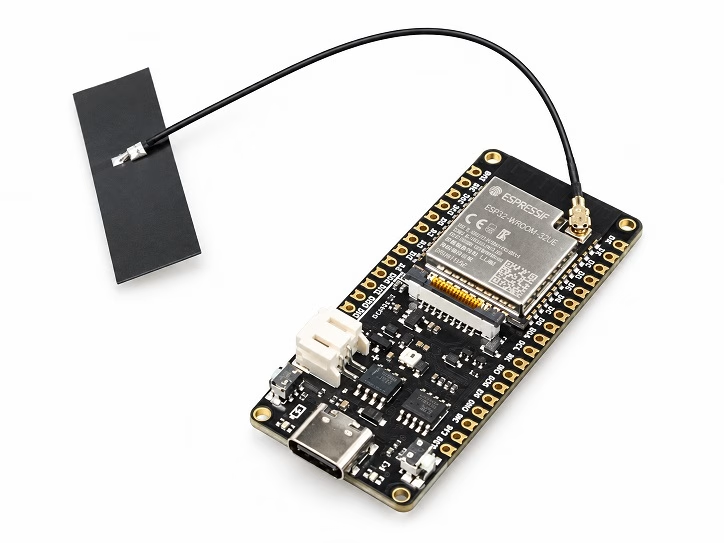
What Is the FireBeetle 2 ESP32-UE?
The FireBeetle 2 ESP32-UE uses an ESP32-WROOM-32UE-N16R2 module. This is based on the original dual-core ESP32, not a newer ESP32-S3 or ESP32-C6. You still get the familiar Wi-Fi, Bluetooth, PWM, ADC, DAC, touch sensing, UART, SPI, and I2C features.
Here are the main specifications:
- Dual-core Xtensa LX6 processor, up to 240 MHz
- 16 MB external flash and 2 MB PSRAM
- 520 KB internal SRAM
- 2.4 GHz Wi-Fi (802.11 b/g/n)
- Bluetooth 4.2 Classic (BR/EDR) and BLE
- USB-C for programming and power
- Single-cell Li-ion battery connector and onboard charging
- GDI display connector and onboard LEDs
- Board dimensions: 25.4 × 60 mm
DFRobot lists 17 digital pins and 11 analog-capable pins among the board's interfaces. The exact pins and their restrictions are worth checking before wiring a project.
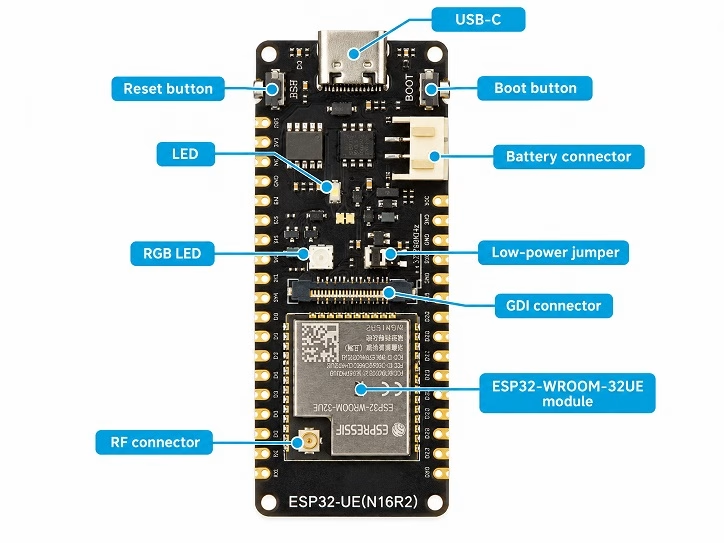
The processor is familiar. The differences are mostly in how DFRobot has packaged it for projects that need to work away from a desk.
Why Use an External Antenna?
If you've used a regular ESP32-WROOM module, you've probably seen the exposed PCB antenna at one end. The ESP32-WROOM-32UE replaces that antenna with a small RF connector for an external 2.4 GHz Wi-Fi/Bluetooth antenna.
This matters when the ESP32 sits inside an enclosure. A nearby battery, display, ground plane, wiring, or metal surface can affect antenna performance. An external antenna lets you choose a better location without moving the entire circuit board.
Imagine an outdoor environmental monitor. The board and sensors sit inside a weather-resistant enclosure, while the antenna can be placed away from the crowded electronics or outside the enclosure using suitable weatherproof hardware.
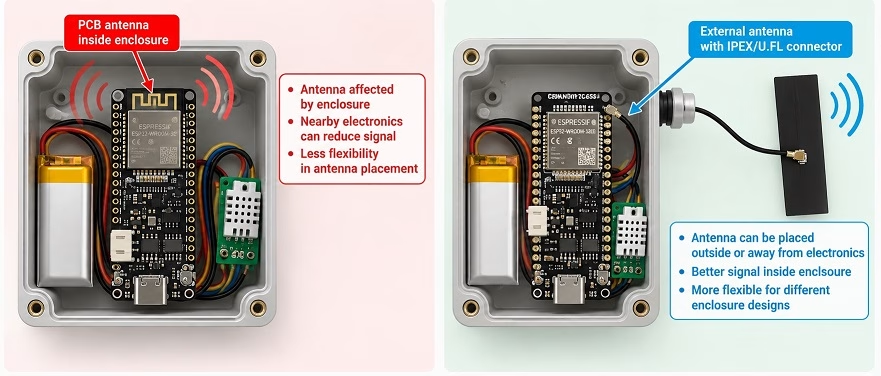
That does not automatically make the FireBeetle a long-range ESP32. Signal strength also depends on antenna gain, orientation, cable loss, obstacles, interference, and the access point. An external antenna gives you more control over placement, not a guaranteed increase in range. We'll return to a simple Wi-Fi comparison after setting up the board.
Battery Power Without a Separate Charger Board
A better antenna location solves one problem for a remote sensor. The next is power.
The FireBeetle has a PH2.0 connector for a single-cell 3.7 V nominal Li-ion/LiPo battery. A fully charged cell can reach about 4.2 V. The board also includes charging circuitry, so you can connect USB power to charge the attached battery while you develop or service the device.
On a typical ESP32 prototype, you might need a separate battery charger and a suitable regulator. The FireBeetle already includes much of that hardware, which can reduce the number of extra modules and wires.
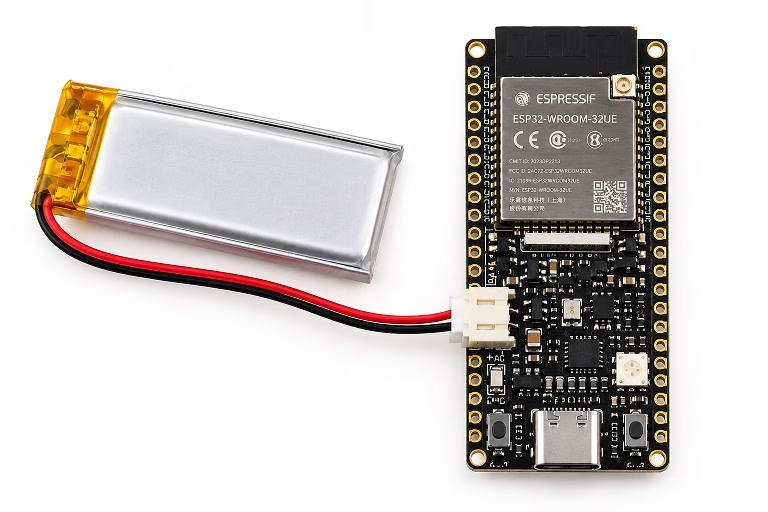
Before connecting a battery, check the connector polarity against the board documentation. PH2.0 connectors on different products do not always use the same wiring order. Use a suitable protected cell or battery pack and follow the manufacturer's charging and handling requirements.
If you're building a solar-powered device, you still need a charging and power-management arrangement suitable for the solar panel and battery. The battery connector alone is not a solar charge controller.
How Low Can the FireBeetle Go?
Battery power becomes much more useful when the ESP32 can sleep between readings.
The ESP32 itself supports deep sleep, but a development board contains more than the ESP32. Its regulator, USB interface, LEDs, and other circuits may continue drawing current even while the processor sleeps.
DFRobot includes a low-power solder jumper, connected by default. According to DFRobot, disconnecting it reduces static consumption by approximately 500 µA, and the board can reach about 13 µA in deep sleep under the manufacturer's stated conditions. Treat that number as a published specification rather than a measured result for your complete project.

We'll use a short deep-sleep sketch later and measure current from the battery connection. The actual result will also depend on sensors, displays, pull-ups, and other connected hardware.
What Do 16 MB Flash and 2 MB PSRAM Add?
The ESP32-UE module carries 16 MB flash, compared with the 4 MB found on many basic ESP32 development boards. That extra storage can make room for larger firmware images, OTA update partitions, web pages, fonts, and other files.
The amount available to a sketch or filesystem still depends on the selected flash-size settings and partition scheme. A 16 MB chip doesn't mean one Arduino sketch can automatically use all 16 MB.
PSRAM serves a different purpose. It adds 2 MB of external working memory, which can help when an application needs large buffers, such as a graphical interface, web response data, or image content. PSRAM is slower than internal RAM and is not a substitute for it in every application.
Also, having PSRAM on the module doesn't mean every allocation automatically uses it. The selected firmware configuration must initialize PSRAM, and applications may need PSRAM-aware allocations or libraries. We'll check shortly whether Arduino detects it.
The GDI Display Connector
The board also has DFRobot's GDI display interface. It uses an 18-pin FPC connection for compatible displays, helping reduce the jumper-wire clutter found in some display prototypes.
For example, a sensor node could read temperature and humidity, update a local dashboard, and send the same measurements over Wi-Fi:
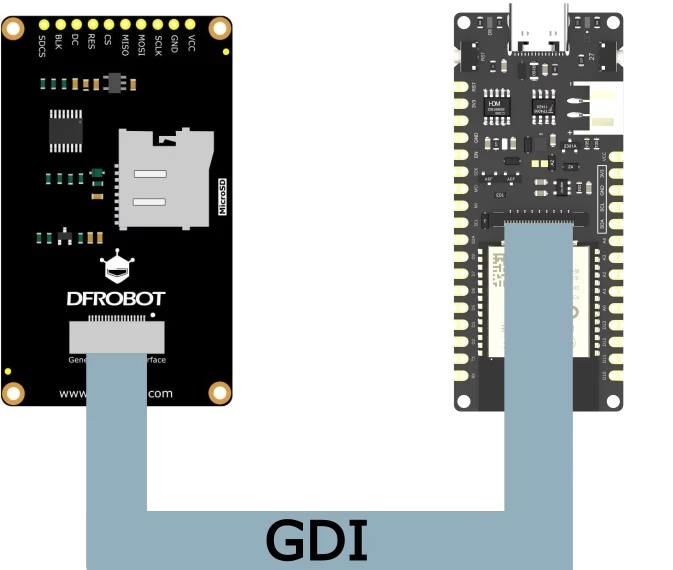
This is one reason the extra flash and PSRAM are useful together. They leave more room for assets and display buffers in projects using graphical libraries such as LVGL. Make sure the specific display and its library support the FireBeetle's GDI pin mapping; GDI isn't a universal connector for all displays.
Understanding the FireBeetle ESP32-UE Pinout
The pinout is mostly familiar, but DFRobot uses Arduino-style aliases alongside the underlying ESP32 GPIO numbers.
For example, the onboard indicator LED is on GPIO2, which DFRobot labels D9 in its FireBeetle Arduino examples. The onboard WS2812 RGB LED uses GPIO5/D8, while the user button uses GPIO27/D4.
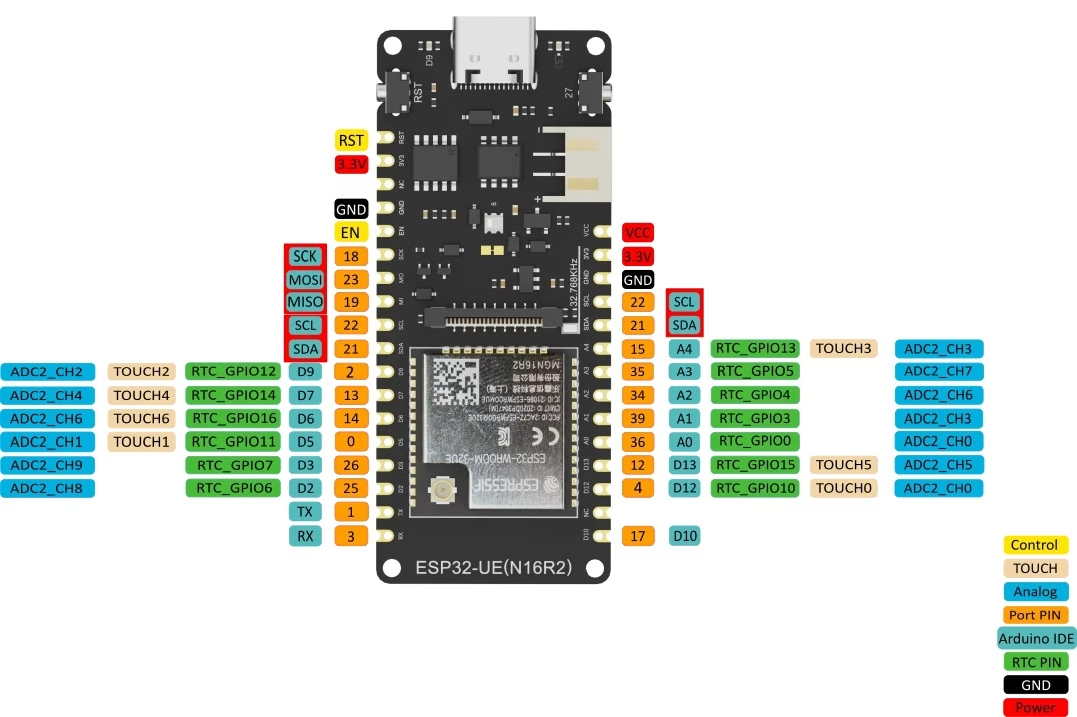
Check the actual GPIO number when adapting a generic ESP32 example. Some pins have boot-strapping functions, connect to onboard components, or are reserved for module memory or programming. The module's flash/PSRAM connections also mean you should not assume every GPIO number mentioned in a generic ESP32 tutorial is available for general use.
For analog sensors, there is one especially important restriction. The original ESP32's ADC2 is shared with Wi-Fi. If your project needs Wi-Fi and analog readings at the same time, use an available ADC1 pin instead. On this board, GPIO34 and GPIO35 are useful ADC1 options. Both are input-only and have no internal pull-up or pull-down resistors.
That small pin choice can save a lot of debugging in a Wi-Fi sensor project.
Getting Started with Arduino IDE
You can program the ESP32-UE with Arduino IDE, ESP-IDF, or MicroPython. We'll use Arduino here because the first tests need only a few lines of code.
To set up the board in Arduino IDE:
- Install the esp32 by Espressif Systems boards package through Boards Manager. If it isn't listed, add
https://espressif.github.io/arduino-esp32/package_esp32_index.jsonunder Additional Boards Manager URLs. - Go to Tools > Board > ESP32 Arduino > FireBeetle ESP32-E. This is the selection shown in DFRobot's ESP32-UE getting-started guide, despite the board itself being the UE antenna variant.
- Connect the board with a USB-C data cable and select the correct serial port.
- Upload the blink sketch below.
const int LED_PIN = D9;  // FireBeetle alias for GPIO2

void setup() {
  pinMode(LED_PIN, OUTPUT);
}

void loop() {
  digitalWrite(LED_PIN, HIGH);
  delay(500);
  digitalWrite(LED_PIN, LOW);
  delay(500);
}
The small onboard LED should turn on for half a second and off for half a second. It's a useful first check that the board, USB connection, and Arduino settings are working.
Checking PSRAM
Next, upload this sketch and open Serial Monitor at 115200 baud:
void setup() {
  Serial.begin(115200);
  delay(1000);

  if (psramFound()) {
    Serial.println("PSRAM detected");
    Serial.print("Total PSRAM: ");
    Serial.println(ESP.getPsramSize());
    Serial.print("Free PSRAM: ");
    Serial.println(ESP.getFreePsram());
  } else {
    Serial.println("PSRAM not detected");
  }
}

void loop() {
}
A correctly initialized N16R2 module should report about 2 MB of total PSRAM, with some memory already in use.
Connecting to Wi-Fi and Reading RSSI
Now for a test that relates directly to the external antenna. This sketch connects to a 2.4 GHz network and prints the received signal strength indicator (RSSI) every second.
#include <WiFi.h>

const char* ssid = "YOUR_SSID";
const char* password = "YOUR_PASSWORD";

void setup() {
  Serial.begin(115200);
  WiFi.mode(WIFI_STA);
  WiFi.begin(ssid, password);

  unsigned long start = millis();
  while (WiFi.status() != WL_CONNECTED &&
         millis() - start < 15000) {
    delay(500);
    Serial.print(".");
  }

  if (WiFi.status() == WL_CONNECTED) {
    Serial.println("\nWi-Fi connected");
    Serial.print("IP address: ");
    Serial.println(WiFi.localIP());
  } else {
    Serial.println("\nWi-Fi connection timed out");
  }
}

void loop() {
  if (WiFi.status() == WL_CONNECTED) {
    Serial.print("RSSI: ");
    Serial.print(WiFi.RSSI());
    Serial.println(" dBm");
  } else {
    Serial.println("Wi-Fi disconnected");
  }
  delay(1000);
}
RSSI is expressed in dBm. A value of -45 dBm indicates a stronger received signal than -80 dBm. The number will fluctuate as the radio environment changes.
Comparing Wi-Fi Signal Strength
To see what antenna placement changes in practice, compare the FireBeetle against a regular ESP32 board with a PCB antenna. Use the same access point, 2.4 GHz network, and test locations. Keep board and antenna orientation consistent, collect at least ten readings at each point, and calculate the average.
Record the external antenna model and any RF cable used. If possible, repeat the test with the FireBeetle antenna inside and outside the enclosure. That gives a more useful comparison than assuming an external antenna is always better.
Measuring Deep-Sleep Current
The other feature worth checking is power consumption. For a simple test, we can make the ESP32 sleep for 60 seconds, wake up, and then go back to sleep.
#include "esp_sleep.h"

void setup() {
  Serial.begin(115200);
  delay(500);

  esp_sleep_enable_timer_wakeup(60ULL * 1000000ULL);
  Serial.println("Entering deep sleep for 60 seconds");
  Serial.flush();
  esp_deep_sleep_start();
}

void loop() {
}
Use the Wi-Fi sketch from the previous section to record current while connected, then upload the deep-sleep sketch for the two sleep measurements. For current measurements, disconnect USB power and measure at the battery supply with a meter that can resolve microamp-level current. Keep the antenna connected but remove unnecessary external loads, such as a display or sensors, for the initial board-only comparison.
Measure with the low-power jumper intact, then repeat after disconnecting it according to DFRobot's instructions. Power the board down before changing the jumper, and note the meter and battery supply used. The Wi-Fi active current changes rapidly, so a single instantaneous reading is not representative of all operating conditions.
Is the FireBeetle 2 ESP32-UE Worth Choosing?
I wouldn't buy the FireBeetle just to blink LEDs or learn basic ESP32 programming. A cheaper, generic ESP32 board will do those jobs.
The FireBeetle becomes more interesting when several requirements appear together. Imagine a monitoring device that lives in an enclosure, reads sensors every few minutes, reports data over Wi-Fi, and runs from a battery. In that case, you can position the antenna away from the electronics, use the onboard charger, and reduce standby current between readings. If you need a local dashboard, the extra memory and GDI interface are useful additions.
There are also reasons to choose something else. The FireBeetle uses the original ESP32 architecture. An ESP32-S3 board may be a better fit for newer processing features or native USB, while an ESP32-C6 is worth considering for Wi-Fi 6 or IEEE 802.15.4 support. Those boards have different peripheral and software tradeoffs, so the newer chip isn't automatically better for every project.
Final Thoughts
What makes the FireBeetle 2 ESP32-UE useful isn't a faster processor. It's the combination of an external antenna connection, battery-oriented power hardware, low-power options, and enough memory for a more complete IoT interface.
For a breadboard experiment, these details may not matter. But for an ESP32 that needs to sit inside a box, spend most of its time asleep, and communicate reliably, they're exactly the details I'd look at before choosing a board.
Need board-specific pin mappings, power details, and reference drawings? See the official DFRobot FireBeetle 2 ESP32-UE documentation.