Home / Tutorials / ESP32 Tutorial / How to Send ESP32 Sensor Data to Google Sheets (2026) 
pcbway
ESP32-Sensor-Log-Google-Sheets

How to Send ESP32 Sensor Data to Google Sheets (2026) 

In this tutorial, I’ll show you exactly how I send sensor data from an ESP32 to Google Sheets every hour.

This setup is:

  • Free
  • Reliable
  • No Firebase
  • No OAuth
  • No paid APIs

If you just want a clean Google Sheet logging your ESP32 sensor data, this is one of the simplest and most stable methods available today.


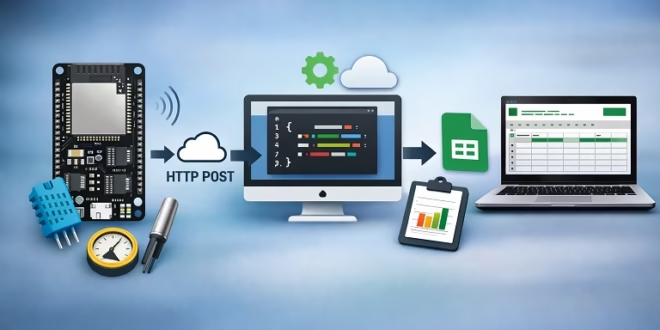
How This Works

Here’s the flow I’m using:

  1. ESP32 reads sensor data
  2. ESP32 connects to Wi-Fi
  3. Every 1 hour, ESP32 sends an HTTP POST request
  4. Google Apps Script receives the data
  5. The data is appended to Google Sheets

That’s it.


What I’m Using

Hardware

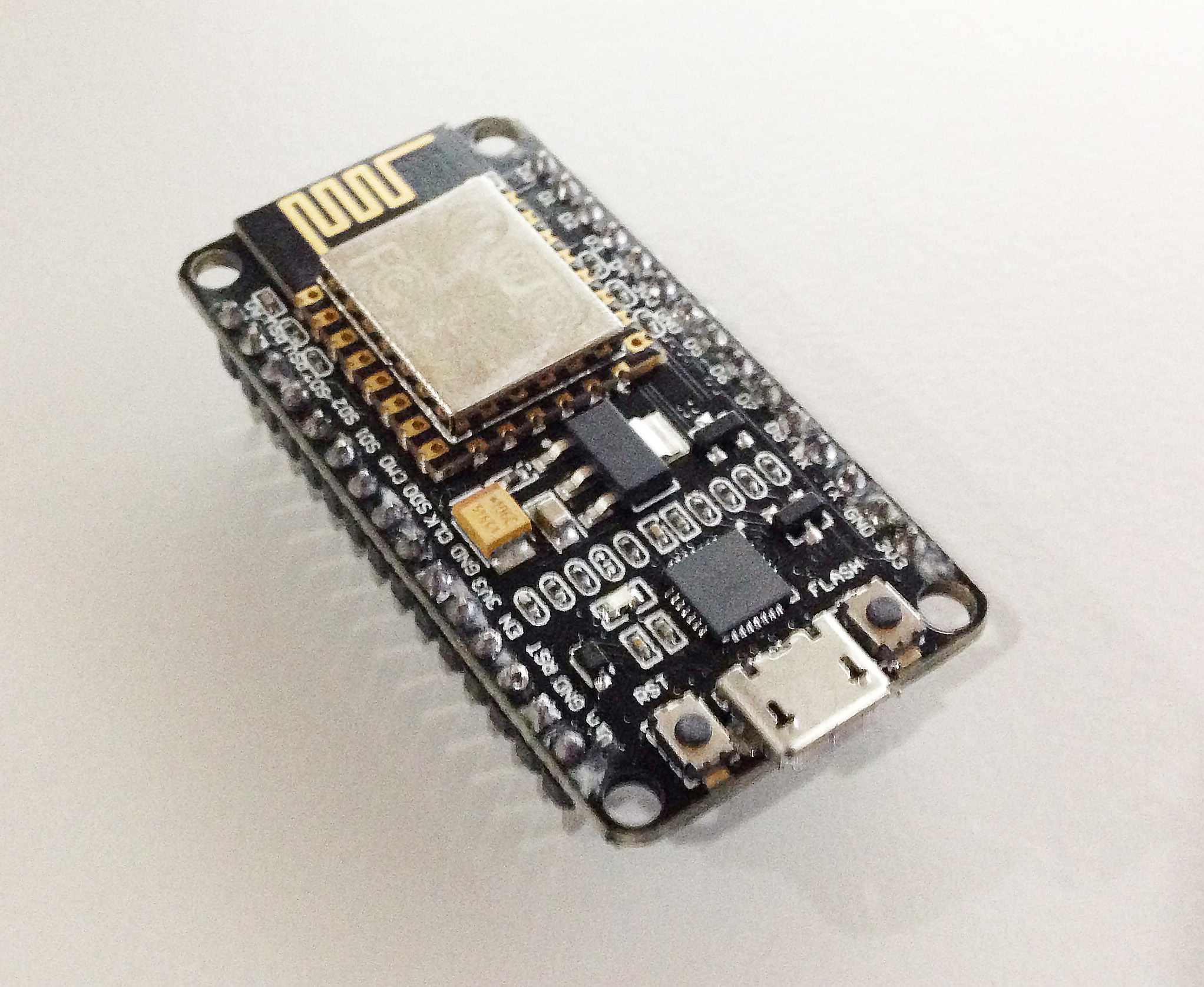
  • ESP32 (any variant works)
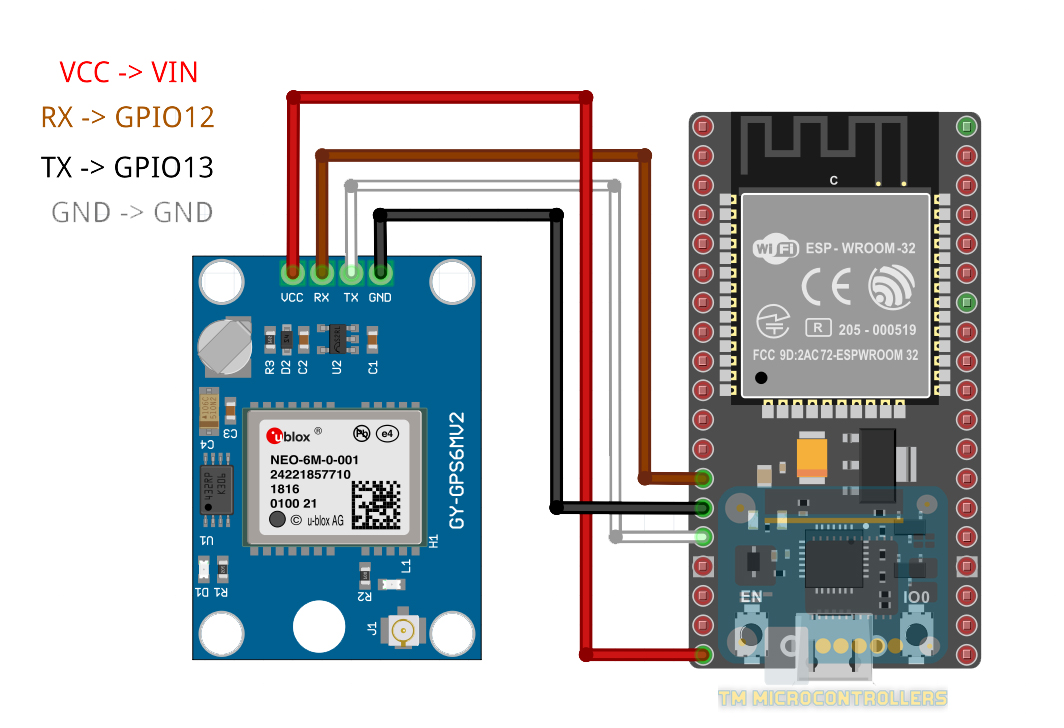
  • Any sensor (DHT22, DS18B20, analog sensor, etc.)

Software & Accounts

  • Arduino IDE
  • Google account
  • Internet connection

Step 1: Create the Google Sheet
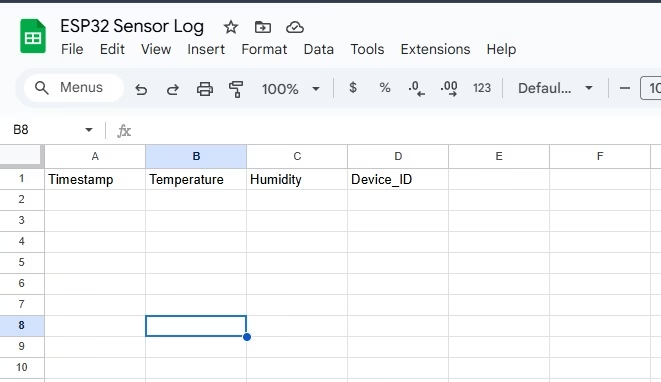
ESP32 Google Sheets Create

First, I create a new Google Sheet.
  1. Go to Google Sheets
  2. Click Blank
  3. Rename the file (I use something like ESP32 Sensor Log)
  4. Add these headers in Row 1Timestamp | Temperature | Humidity | Device_ID

You can add more columns later if you want more sensors.


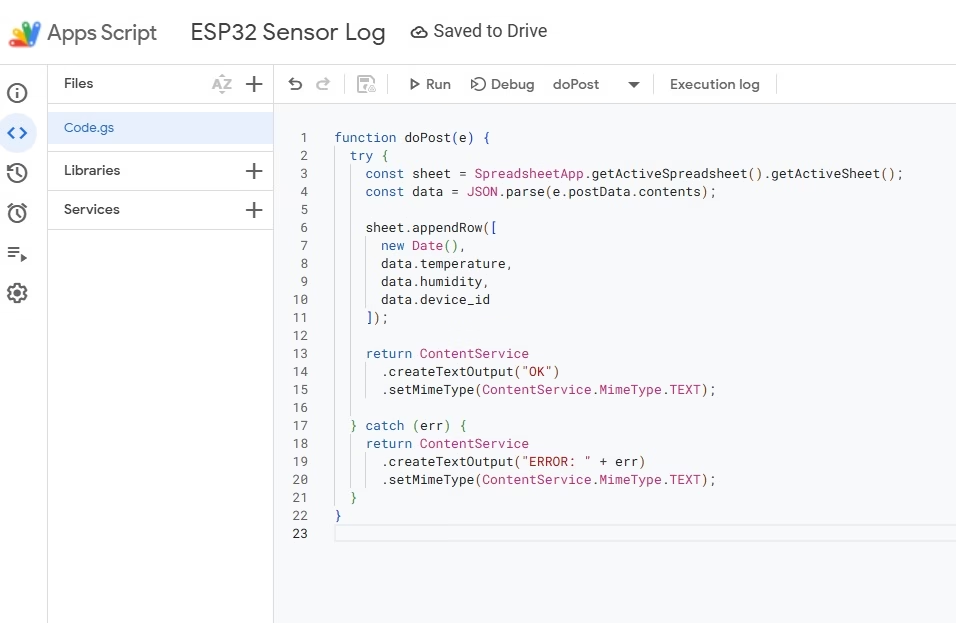
Step 2: Create the Google Apps Script
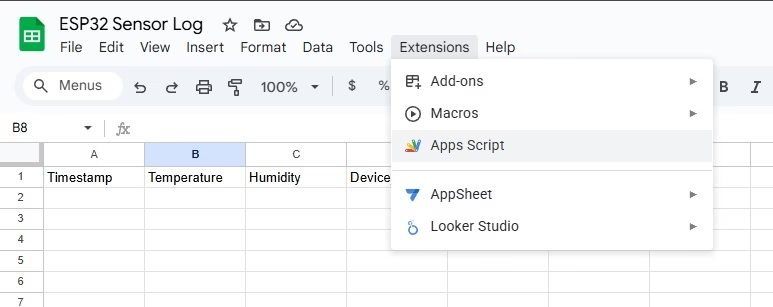
ESP32 Google Sheets Add Script

ESP32 Google Script

This script will receive data from the ESP32.
  1. Inside your Google Sheet, click
    Extensions → Apps Script
  2. Delete everything inside the editor
  3. Paste this code:
    function doPost(e) {
      try {
        const sheet = SpreadsheetApp.getActiveSpreadsheet().getActiveSheet();
        const data = JSON.parse(e.postData.contents);
    
        sheet.appendRow([
          new Date(),
          data.temperature,
          data.humidity,
          data.device_id
        ]);
    
        return ContentService
          .createTextOutput("OK")
          .setMimeType(ContentService.MimeType.TEXT);
    
      } catch (err) {
        return ContentService
          .createTextOutput("ERROR: " + err)
          .setMimeType(ContentService.MimeType.TEXT);
      }
    }
    
  1. Click Save
  2. Name the project (I usually call it ESP32 Sensor Log )

Step 3: Deploy the Script as a Web App

This step is critical.
  1. Click Deploy → New deployment
  2. Select Web app
  3. Set the options:
    • Execute as: Me
    • Who has access: Anyone
  4. Click Deploy
  5. Authorize permissions
  6. Copy the Web App URL

I’ll use this URL in the ESP32 code.


Step 4: ESP32 Arduino Code (Hourly Upload)

Libraries I’m Using

These are already included with ESP32 Arduino core:

  • WiFi.h
  • HTTPClient.h

Example ESP32 Code

#include <WiFi.h>
#include <HTTPClient.h>

const char* ssid = "YOUR_WIFI_NAME";
const char* password = "YOUR_WIFI_PASSWORD";

const char* serverUrl =
  "https://script.google.com/macros/s/YOUR_SCRIPT_ID/exec";

unsigned long lastSend = 0;
const unsigned long interval = 3600000; // 1 hour

void setup() {
  Serial.begin(115200);

  WiFi.begin(ssid, password);
  Serial.print("Connecting to WiFi");

  while (WiFi.status() != WL_CONNECTED) {
    delay(500);
    Serial.print(".");
  }

  Serial.println("\nWiFi connected");
}

void loop() {
  if (millis() - lastSend >= interval) {
    lastSend = millis();
    sendData();
  }
}

void sendData() {
  if (WiFi.status() == WL_CONNECTED) {
    HTTPClient http;
    http.begin(serverUrl);
    http.addHeader("Content-Type", "application/json");

    float temperature = 25.4; // replace with sensor read
    float humidity    = 60.2; // replace with sensor read

    String json =
      "{"
      "\"temperature\":" + String(temperature) + ","
      "\"humidity\":" + String(humidity) + ","
      "\"device_id\":\"ESP32_01\""
      "}";

    int responseCode = http.POST(json);
    Serial.println("HTTP Response: " + String(responseCode));

    http.end();
  }
}

Step 5: Check Google Sheets

Once the ESP32 sends data:
  • A new row appears
  • Timestamp is automatic
  • Sensor values are logged

For testing, I usually reduce the interval first.


Development Tip: Faster Testing

Change this:

const unsigned long interval = 10000; // 10 seconds


Once everything works, change it back to:

3600000 // 1 hour

Common Problems I Encountered

ESP32 returns -1

  • Wi-Fi not connected
  • Wrong Web App URL
  • HTTPS blocked

Google Sheet stays empty

  • Field names don’t match JSON
  • Forgot to redeploy script

Permission errors

  • Web App access not set to Anyone

Optional: Battery-Powered Hourly Logging

If I’m running on battery, I use deep sleep:

esp_sleep_enable_timer_wakeup(3600ULL * 1000000ULL);
esp_deep_sleep_start();

This wakes the ESP32 every hour, sends data, then sleeps again.


Final Thoughts

This method has been extremely reliable for me:

  • No third-party services
  • No monthly fees
  • Easy to debug
  • Scales well for multiple ESP32 devices

Check Also

Voice Command Recognition using ESP32 and TinyML

Voice Command Recognition with ESP32 and TinyML (Using Edge Impulse)

Updated: November 15, 2025Ever wanted to make your ESP32 respond to voice commands like “ON”, …

Index