One of the reasons I like the ESP32-S3 is that you can get a surprising amount of memory on a very small development board. Some variants come with 2 MB of PSRAM, while others have 8 MB. That is much more memory than the ESP32-S3 has internally. However, the advertised PSRAM size does not tell you how much of it your program can actually use.
I ran into this while testing an ESP32-S3 Mini. I knew the chip on my board was supposed to have 2 MB of PSRAM. One of my first tests successfully allocated a 1 MB buffer; however, it was surprisingly easy to read that result as if the board only had 1 MB available. Another memory test showed the actual 2 MB.
The important part was figuring out what each PSRAM value actually represented.
There is the total PSRAM physically available to the chip. Then there is the amount currently free. There is also the largest continuous block that your program can allocate. Those numbers are related, but they are not necessarily equal. In this tutorial, I'll show you how to enable PSRAM in the Arduino IDE, confirm that the ESP32-S3 actually detects it, allocate buffers inside it and check how much usable memory remains.
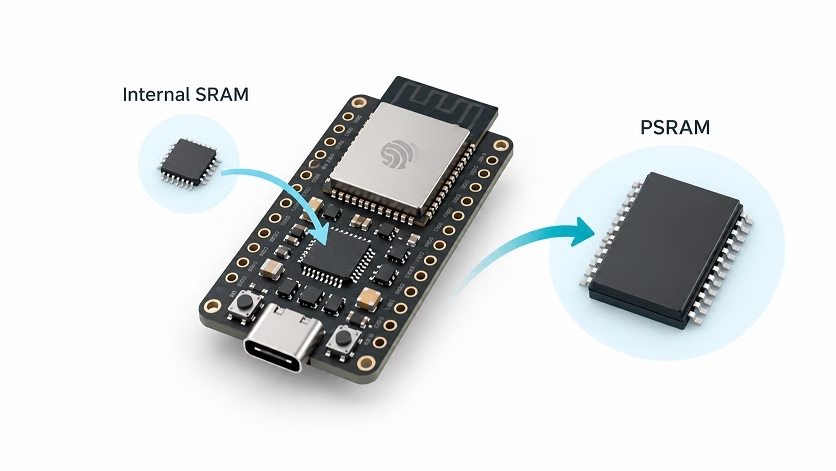
What is PSRAM on the ESP32-S3?
The ESP32-S3 already contains internal SRAM. This is where your program keeps variables, task stacks, temporary buffers, and other runtime data. Internal RAM becomes limited once the project starts using large buffers. A small sensor program will probably never care about PSRAM. This becomes noticeable in projects that:
- Store camera frame buffers
- Run TinyML models
- Build large JSON documents
- Process audio samples
- Buffer data before writing to an SD card
- Store images for a display
- Receive large network packets or files
These applications can quickly consume the available internal SRAM. PSRAM, or pseudo-static RAM, gives the ESP32-S3 an additional external memory space. Depending on the hardware configuration, the PSRAM can be connected through Quad SPI or Octal SPI.
Once initialized, PSRAM can be allocated much like normal RAM. However, it is still external memory and not simply another block of internal SRAM. Because it is external memory, it is slower and has some restrictions that internal SRAM does not.
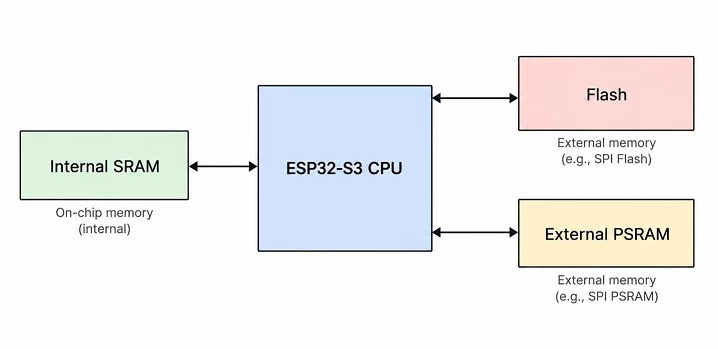
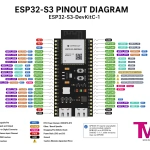
If you are also deciding which ESP32-S3 pins are available for a project, see my ESP32-S3 pinout guide. Some GPIO pins are used internally by flash and PSRAM on certain modules.
Does Your ESP32-S3 Actually Have PSRAM?
Not every ESP32-S3 board has PSRAM. Two boards sold as "ESP32-S3" can have different flash and PSRAM configurations. For Espressif modules, the suffix printed on the chip or module often gives us a clue.
| Marking | Flash | PSRAM | PSRAM Type |
|---|---|---|---|
| N4R2 | 4 MB | 2 MB | QSPI |
| N8R2 | 8 MB | 2 MB | QSPI |
| N16R2 | 16 MB | 2 MB | QSPI |
| N4R8 | 4 MB | 8 MB | OPI |
| N8R8 | 8 MB | 8 MB | OPI |
| N16R8 | 16 MB | 8 MB | OPI |
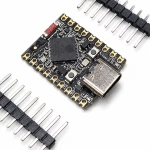
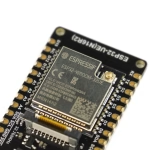
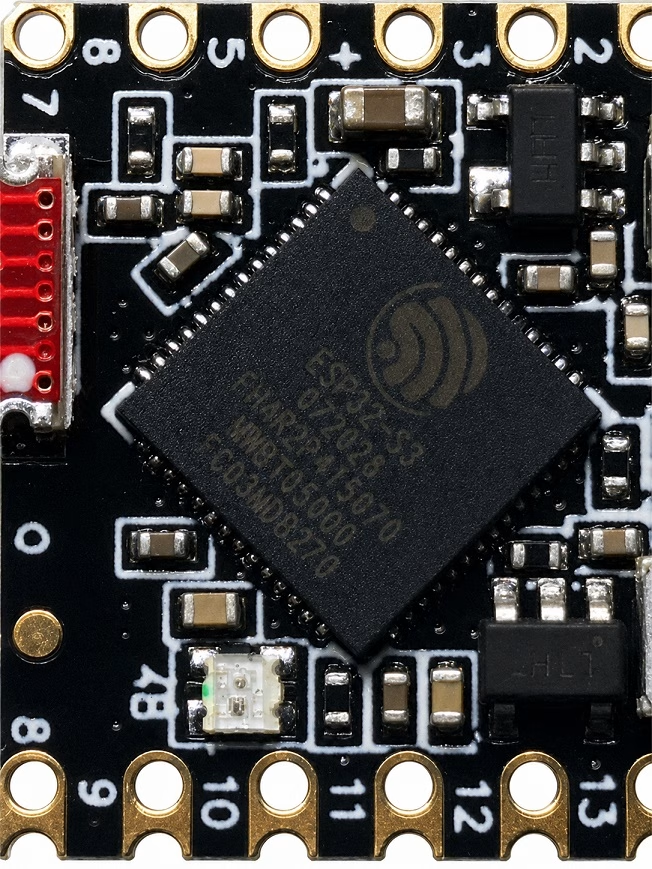
For PSRAM, look at the R suffix. R2 indicates 2 MB PSRAM, while R8 indicates 8 MB PSRAM. There are also ESP32-S3 variants without PSRAM, so don't assume every board includes it. On generic boards such as the ESP32-S3 Super Mini, I would not trust the product listing alone. Check the actual marking on the chip or module if possible. This is what I did with my own board. On the image below, you can see "FN4R2P415070," which means this board has 2MB of PSRAM. I trust the device marking more than the seller's listing.
Enabling ESP32-S3 PSRAM in Arduino IDE
The Arduino configuration also has to match the installed PSRAM. If you are using the generic ESP32-S3 board definition, select:
Tools > Board > ESP32 Arduino > ESP32S3 Dev Module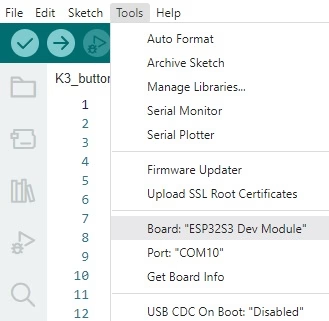
Then look for:
Tools > PSRAM
Depending on the Arduino-ESP32 version and selected board, you may see options such as:
- Disabled
- QSPI PSRAM
- OPI PSRAM
For a board with R2 PSRAM, select:
QSPI PSRAMThen, for a board with R8 PSRAM, select:
OPI PSRAMFor example, if the device marking indicates an R2 configuration, I would select:
Tools > PSRAM > QSPI PSRAMA wrong PSRAM or flash setting can also prevent the board from booting correctly. So if an ESP32-S3 starts rebooting after uploading even a simple sketch, the PSRAM setting is one of the first things I would check.
Detecting PSRAM from an Arduino Sketch
These are my Arduino settings for this article, so make sure you have the same before uploading and running the sketches here:
- Board: ESP32S3 Dev Module if your specific Mini board isn't listed
- USB CDC On Boot: Enabled
- Upload Mode: UART0 / Hardware CDC
- USB Mode: Hardware CDC and JTAG if that option is available
- Port: <your ESP32-S3's COM Port>
- Serial Monitor: 115200
Before allocating PSRAM, first check whether the Arduino core detects it. The simplest test is psramFound():
void setup() {
  Serial.begin(115200);
  delay(2000);

  if (psramFound()) {
    Serial.println("PSRAM detected!");
  } else {
    Serial.println("PSRAM not found.");
  }
}

void loop() {
}
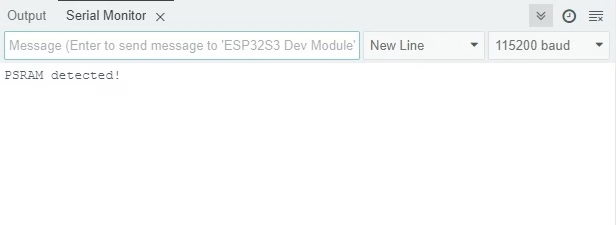
If everything is configured correctly, you should see:
PSRAM detected!
If you get:
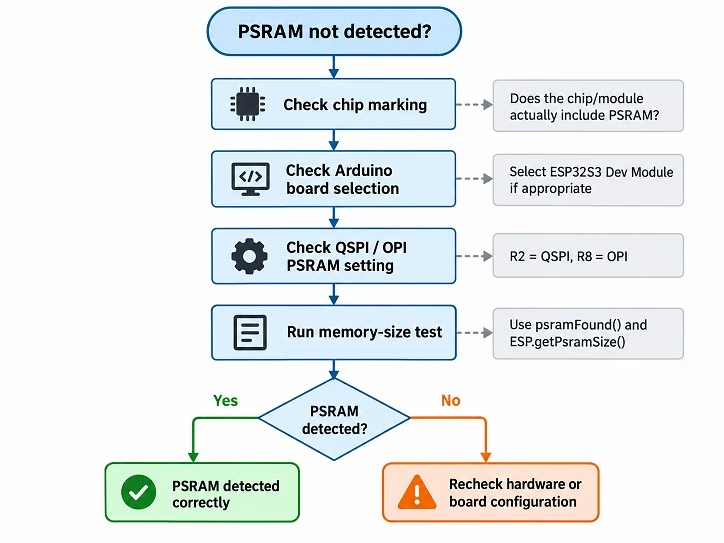
PSRAM not found.A failed detection test can also be caused by the board or PSRAM configuration.
Check these first:
- The exact ESP32-S3 chip or module variant
- The board selected in Arduino IDE
- The QSPI or OPI PSRAM setting
- The memory specification supplied by the board manufacturer
Only after those checks would I start suspecting a hardware problem.
Checking ESP32-S3 PSRAM Size
The ESP object reports the total, free, minimum-free, and maximum allocatable PSRAM.
Try this sketch:
void setup() {
  Serial.begin(115200);
  delay(2000);

  Serial.println("ESP32-S3 PSRAM Test");
  Serial.println("-------------------");

  if (!psramFound()) {
    Serial.println("PSRAM not detected.");
    return;
  }

  Serial.println("PSRAM detected: YES");

  Serial.print("Total PSRAM: ");
  Serial.print(ESP.getPsramSize() / 1024.0 / 1024.0, 2);
  Serial.println(" MB");

  Serial.print("Free PSRAM: ");
  Serial.print(ESP.getFreePsram() / 1024.0);
  Serial.println(" KB");

  Serial.print("Minimum free PSRAM: ");
  Serial.print(ESP.getMinFreePsram() / 1024.0);
  Serial.println(" KB");

  Serial.print("Largest free block: ");
  Serial.print(ESP.getMaxAllocPsram() / 1024.0);
  Serial.println(" KB");
}

void loop() {
}
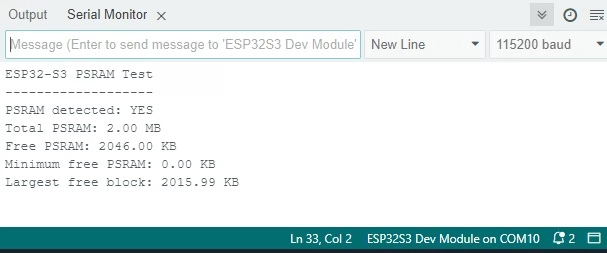
On a 2 MB ESP32-S3, the important result should be close to:
PSRAM detected: YES
Total PSRAM: 2.00 MB
The other numbers will vary depending on the Arduino core, libraries and anything your program has already allocated. The total PSRAM value alone is not enough when debugging memory use.
Total PSRAM Is Not the Same as Free PSRAM
There are four useful numbers in the previous program:
| Function | What It Tells You |
|---|---|
| ESP.getPsramSize() | Total PSRAM detected by the ESP32-S3 |
| ESP.getFreePsram() | PSRAM currently unused |
| ESP.getMinFreePsram() | Lowest free-PSRAM level reached since boot |
| ESP.getMaxAllocPsram() | Largest single contiguous block that can currently be allocated |
ESP.getMaxAllocPsram() is especially important when allocating large buffers.
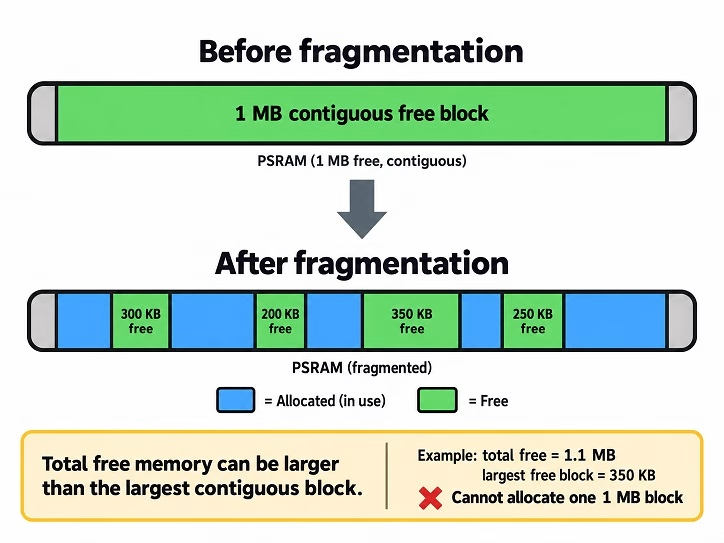
For example, suppose the ESP32 reports:
Free PSRAM:          1200 KB
Largest free block:   700 KB
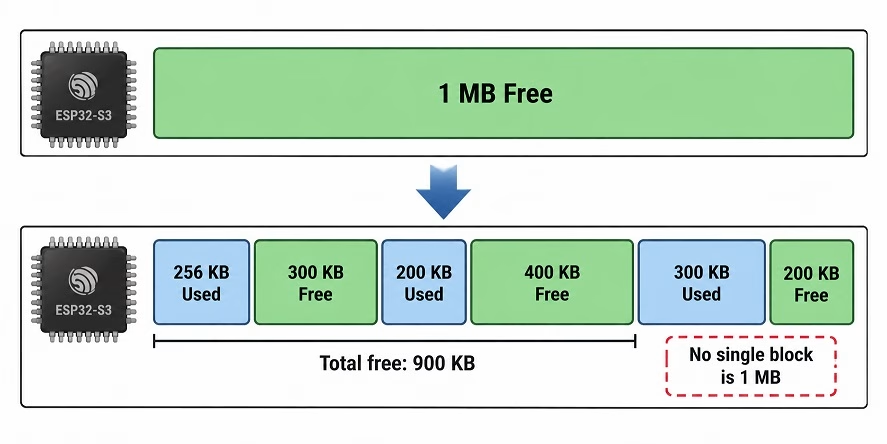
You have 1.2 MB free in total, but that does not mean you can allocate a single 1 MB buffer. The free memory may be split into several smaller regions. The heap is fragmented: the free memory exists, but it is split into smaller blocks. Free PSRAM and maximum allocatable PSRAM therefore need to be checked separately. This is what confused my earlier 1 MB allocation test. A successful 1 MB allocation tells me that a 1 MB block was available. It does not tell me that the board physically contains only 1 MB of PSRAM.
Allocating Memory with ps_malloc()
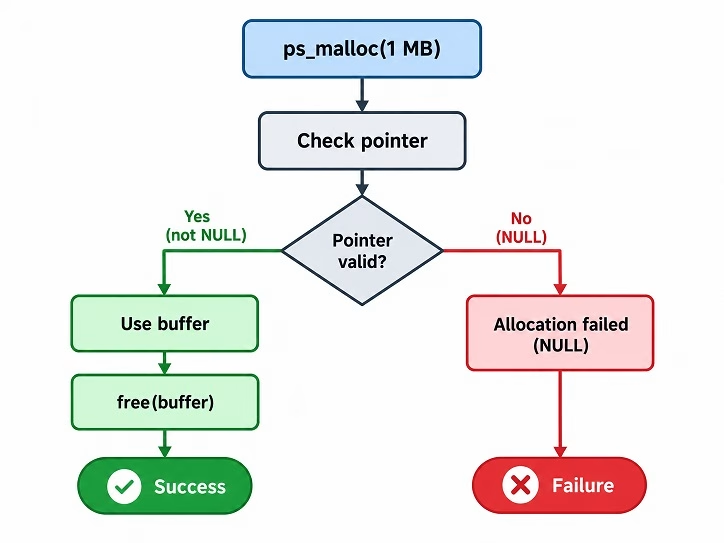
Next, we can allocate a buffer directly in PSRAM. Arduino-ESP32 provides ps_malloc(), which works much like the normal C malloc() function except that the allocation is specifically requested from PSRAM.
Here's a simple example that tries to allocate 1 MB:
void setup() {
  Serial.begin(115200);
  delay(2000);

  if (!psramFound()) {
    Serial.println("PSRAM not available.");
    return;
  }

  const size_t bufferSize = 1024 * 1024;

  uint8_t *buffer = (uint8_t *)ps_malloc(bufferSize);

  if (buffer == NULL) {
    Serial.println("PSRAM allocation failed!");
    return;
  }

  Serial.println("1 MB PSRAM allocation successful.");

  free(buffer);
  Serial.println("Buffer released.");
}

void loop() {
}
Always check whether the returned pointer is NULL. Large allocations can fail even when PSRAM is enabled. Also notice that we release the PSRAM buffer using:
free(buffer);You don't need a special ps_free() function.
Actually Writing Data to PSRAM
I also wanted to verify that the allocated memory could be written and read back correctly. Let's allocate 1 MB, fill it with data and then verify the values.
void setup() {
  Serial.begin(115200);
  delay(2000);

  if (!psramFound()) {
    Serial.println("PSRAM not detected.");
    return;
  }

  const size_t bufferSize = 1024 * 1024;

  uint8_t *buffer = (uint8_t *)ps_malloc(bufferSize);

  if (buffer == NULL) {
    Serial.println("Could not allocate 1 MB in PSRAM.");
    return;
  }

  Serial.println("1 MB allocated successfully.");

  // Fill the buffer with a repeating pattern
  for (size_t i = 0; i < bufferSize; i++) {
    buffer[i] = i & 0xFF;
  }

  // Verify the contents
  bool passed = true;

  for (size_t i = 0; i < bufferSize; i++) {
    if (buffer[i] != (i & 0xFF)) {
      passed = false;
      break;
    }
  }

  if (passed) {
    Serial.println("PSRAM read/write test PASSED.");
  } else {
    Serial.println("PSRAM read/write test FAILED.");
  }

  free(buffer);
}

void loop() {
}
This verifies more than allocation alone:
- Confirms PSRAM initialization
- Confirms that a large contiguous block is available
- Writes across the allocated region
- Reads the data back
- Checks that the contents were preserved
A successful result should look like:
1 MB allocated successfully.
PSRAM read/write test PASSED.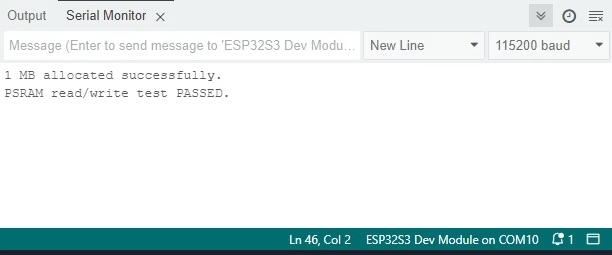
ps_malloc() vs malloc() vs heap_caps_malloc()
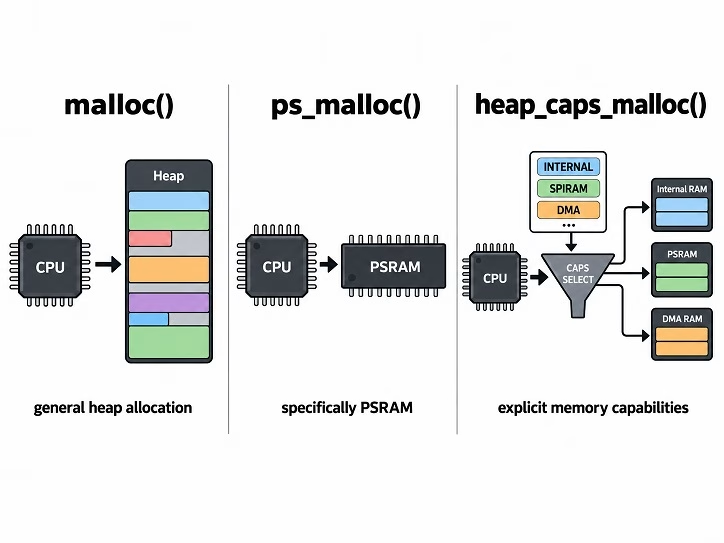
ps_malloc() is not the only allocator that can use PSRAM. ESP32 applications also use malloc(). With PSRAM enabled, the ESP32 heap allocator can also place some ordinary allocations in external RAM. That means ordinary calls to malloc() may also use PSRAM depending on the allocation size, available memory, and configuration.
This lets existing libraries use the larger heap without calling ps_malloc() directly. For memory tests, I use ps_malloc() so I know the buffer is coming from PSRAM:
uint8_t *buffer = (uint8_t *)ps_malloc(bufferSize);For even more control, we can use the ESP32 capability-based allocator:
#include "esp_heap_caps.h"

uint8_t *buffer = (uint8_t *)heap_caps_malloc(
    bufferSize,
    MALLOC_CAP_SPIRAM | MALLOC_CAP_8BIT
);
The MALLOC_CAP_SPIRAM flag specifically requests external PSRAM. For most Arduino projects, ps_malloc() is easier to read. I would reach for heap_caps_malloc() when I need more specific control over the type of memory being requested.
When Should You Use PSRAM?
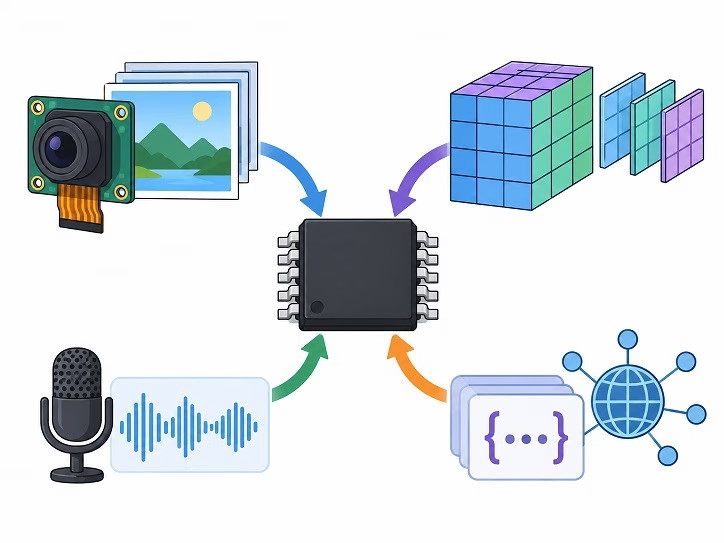
PSRAM is best suited to large data where the lowest possible access latency is not required.
Good candidates include:
- Camera frames
- Image buffers
- Audio sample buffers
- Large arrays
- Machine-learning tensor arenas
- Large strings
- JSON documents
- Network receive buffers
- Temporary file buffers
For example, an ESP32-S3 used for TinyML may need hundreds of kilobytes just for model tensors and intermediate data. Moving this kind of bulk data to PSRAM leaves more internal SRAM available for the rest of the application. A 300 KB buffer might consume an uncomfortable amount of internal RAM. Put the same bulk data in PSRAM and you preserve internal memory for the operating system, Wi-Fi, task stacks, and peripherals.
PSRAM Is Not Just More Internal SRAM
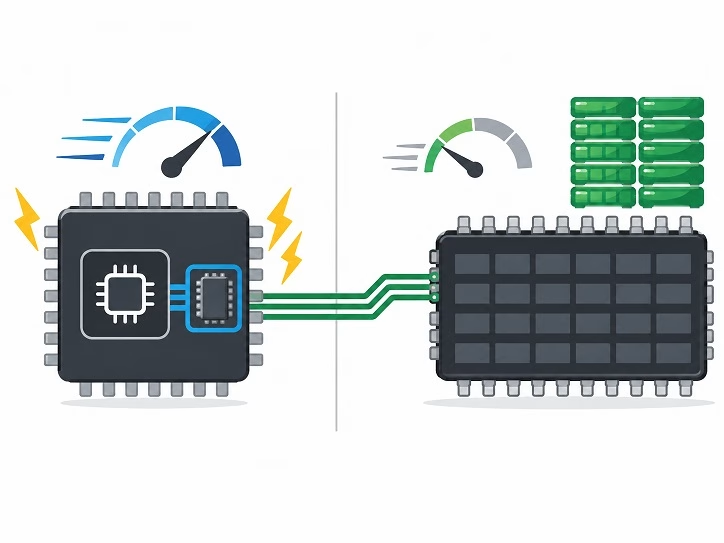
An ESP32-S3 with 8 MB of PSRAM does not behave like a microcontroller with 8 MB of internal SRAM. External PSRAM sits behind the ESP32-S3's memory interface and cache. Frequently accessed data can perform reasonably well, but large accesses eventually exceed what the cache can hide. Use PSRAM when capacity matters. Keep frequently accessed or timing-sensitive data in internal SRAM. There is little benefit in moving small variables to PSRAM just because it is available. Use PSRAM for the large objects that actually justify it.
Some Data Still Needs Internal RAM
Some data cannot or should not be placed in PSRAM. Peripheral and DMA operations can have additional memory requirements. Some hardware structures must remain in internal memory even if the main data buffer lives in PSRAM. FreeRTOS task stacks are also normally kept in internal RAM.
PSRAM and external flash also share parts of the ESP32-S3 external-memory and cache system. This becomes relevant if you are writing lower-level code, performing flash operations, or debugging difficult timing-related crashes. This usually does not matter for a simple image or data buffer, but it matters more in drivers, networking, DMA, flash operations, and real-time applications.
A practical rule is:
Use PSRAM for bulk storage. Keep timing-critical and hardware-sensitive data in internal RAM unless you have a specific reason not to.

Monitoring PSRAM While Your Program Runs
A memory leak or fragmentation problem may not become visible until the program has been running for a while. For debugging, I find it useful to periodically print both free PSRAM and the largest allocatable block.
void printPsramStatus() {
  Serial.print("Free PSRAM: ");
  Serial.print(ESP.getFreePsram() / 1024);
  Serial.println(" KB");

  Serial.print("Largest block: ");
  Serial.print(ESP.getMaxAllocPsram() / 1024);
  Serial.println(" KB");

  Serial.print("Minimum free PSRAM: ");
  Serial.print(ESP.getMinFreePsram() / 1024);
  Serial.println(" KB");
}
Call this at different stages of your program.
For example:
printPsramStatus();

camera.begin();

printPsramStatus();

loadModel();

printPsramStatus();
Comparing these readings shows which initialization step consumed the PSRAM. getMinFreePsram() records the lowest free-PSRAM level reached since boot. A temporary allocation might have already been released by the time you check the Serial Monitor, but the minimum value can reveal that memory usage briefly spiked.
Why Can an Allocation Fail When PSRAM Is Still Free?
Suppose your Serial Monitor says:
Free PSRAM: 1300 KBThen this fails:
ps_malloc(1024 * 1024);The reason becomes clear when you check the largest allocatable block.
Check:
ESP.getMaxAllocPsram()You may discover something like:
Free PSRAM:       1300 KB
Largest block:     800 KB
The allocator has 1.3 MB available overall, but there is no single 1 MB continuous region. This can happen after many differently sized allocations and frees. If your application depends on a very large buffer, allocate it early during startup rather than waiting until the heap has been used heavily. If your application needs one large buffer, allocate it early before repeated allocations fragment the heap.
ESP32-S3 PSRAM Troubleshooting
PSRAM Size Shows 0 Bytes
First check:
psramFound()If that also returns false, verify the Arduino IDE PSRAM configuration.
For R2 devices:
Tools > PSRAM > QSPI PSRAMFor R8 devices:
Tools > PSRAM > OPI PSRAMAlso confirm that your ESP32-S3 variant actually contains PSRAM.
The Board Keeps Rebooting
An incorrect flash or PSRAM mode can prevent some ESP32-S3 boards from starting correctly. Check the exact chip or module marking rather than guessing based on the development-board name.
ps_malloc() Returns NULL
Print:
ESP.getFreePsram()
ESP.getMaxAllocPsram()
The largest available block may be smaller than the buffer you are requesting. Also make sure the result of every allocation is checked before using the pointer.
My 2 MB Board Shows Slightly Less Than 2 MB Free
That is normal. ESP.getPsramSize() reports the total detected PSRAM, while ESP.getFreePsram() tells you how much remains available after system initialization and allocations. Don't use the free-memory value to identify how much memory is physically there.
I Allocated 1 MB. Does That Mean My Board Has 1 MB PSRAM?
No.
It only proves that the allocator successfully found a 1 MB continuous block.
Use:
ESP.getPsramSize()to determine the total detected PSRAM.
Putting It All Together
I use the following sketch as a quick PSRAM check on a new ESP32-S3 board:
void setup() {
  Serial.begin(115200);
  delay(2000);

  Serial.println();
  Serial.println("ESP32-S3 PSRAM Check");
  Serial.println("====================");

  if (!psramFound()) {
    Serial.println("PSRAM: NOT DETECTED");
    return;
  }

  Serial.println("PSRAM: DETECTED");

  Serial.printf(
    "Total PSRAM: %.2f MB\n",
    ESP.getPsramSize() / 1024.0 / 1024.0
  );

  Serial.printf(
    "Free PSRAM: %.2f MB\n",
    ESP.getFreePsram() / 1024.0 / 1024.0
  );

  Serial.printf(
    "Largest block: %.2f MB\n",
    ESP.getMaxAllocPsram() / 1024.0 / 1024.0
  );

  const size_t testSize = 1024 * 1024;

  uint8_t *testBuffer = (uint8_t *)ps_malloc(testSize);

  if (testBuffer != NULL) {
    Serial.println("1 MB allocation: PASS");
    memset(testBuffer, 0x55, testSize);
    Serial.println("1 MB write: PASS");
   free(testBuffer);
  } else {
    Serial.println("1 MB allocation: FAIL");
  }
}

void loop() {
}
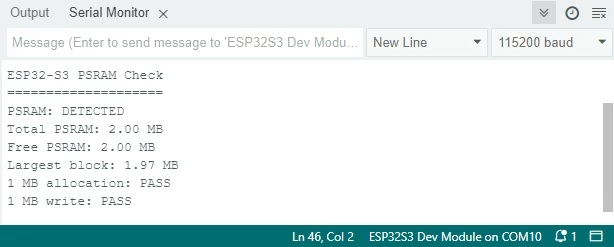
From this output I can verify that PSRAM is detected, see the total and available memory, check the largest block, and confirm that a reasonably large buffer can actually be allocated.
Conclusion
PSRAM is useful when an ESP32-S3 project needs large image, audio, machine-learning, or network buffers. It should not be treated the same as internal SRAM. First, make sure your particular ESP32-S3 actually contains PSRAM. Then configure the correct QSPI or OPI mode in Arduino IDE and verify it using psramFound() and ESP.getPsramSize(). After that, functions such as ps_malloc() make it straightforward to place large buffers in external memory.
My testing showed why total memory, free memory, and largest allocatable memory are three different things. Checking all three usually makes allocation problems much easier to trace.
In the next experiment, I will take this a step further and compare ESP32-S3 internal SRAM against PSRAM, including allocation size, read/write speed and what happens as the working buffer becomes larger.