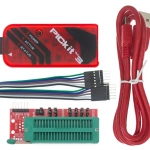
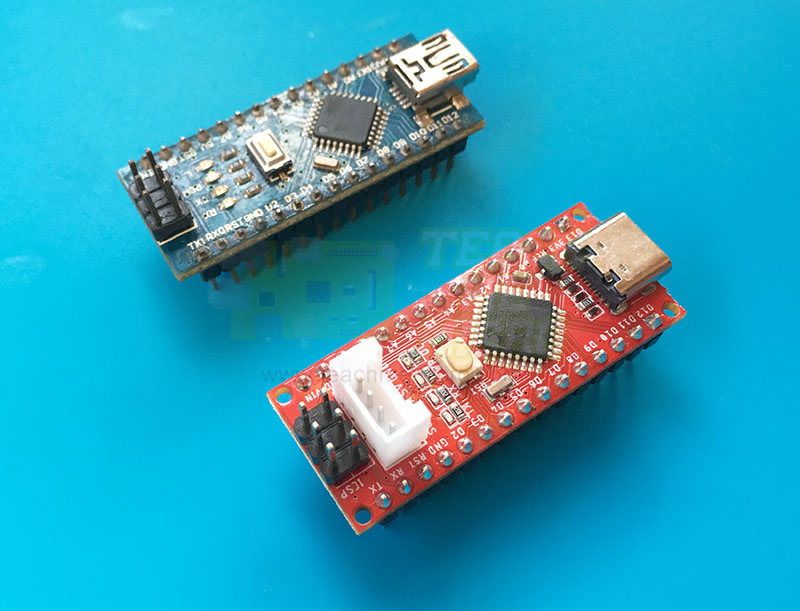
Programming PIC microcontrollers usually requires specialized hardware programmers like the PICkit series. But what if you don’t have one? Thanks to open-source projects like a-p-prog, you can turn an Arduino Uno or Nano into a PIC programmer that works over the In-Circuit Serial Programming (ICSP) interface.
In this tutorial, we’ll walk through the steps to use an Arduino as a PIC programmer, upload code, and troubleshoot common issues.
Why Use an Arduino to Program PICs?
- Low cost: Any spare Arduino Uno, Nano, or Pro Mini will do.
- Simplicity: Just a handful of jumper wires.
- Flexibility: Works with a wide range of popular 8-bit PIC microcontrollers.
- Open-source: The firmware and host software are freely available and regularly tested.
What You’ll Need
Hardware
- Arduino Uno/Nano/Pro Mini (ATmega328P-based)
- Target PIC microcontroller (e.g., PIC16F1829, PIC12F1840 — see supported list)
- Breadboard or target board with ICSP pins
- Jumper wires
- Optional: 470–1 kΩ resistors (recommended if the target is self-powered or uses 3.3 V logic)
- USB cable for Arduino
Software
- Arduino IDE
- pp3 host utility (from the a-p-prog repo)
- A compiler toolchain for PIC (e.g., MPLAB X + XC8, SDCC) to generate .hex files
Step 1: Wiring Arduino to PIC (ICSP)

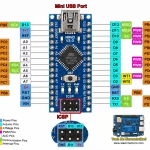
The Arduino acts as an ICSP programmer using three main pins:
| Arduino Pin | PIC Pin | Function |
|---|---|---|
| A3 | MCLR | Reset / programming entry |
| A1 | PGD | Programming Data |
| A0 | PGC | Programming Clock |
| GND | GND | Common ground |
| 5V | VDD | Optional power (if PIC runs at 5V) |
⚠️ If your target board is already powered, or runs at 3.3 V, add 470–1 kΩ resistors in series with MCLR/PGC/PGD. This prevents back-power issues.
Step 2: Flash the Arduino Programmer Firmware
- Clone or download the a-p-prog repository.
- Open Arduino IDE.
- Load the sketch from fw/pp/pp.ino.
- Select your Arduino board and COM port, then Upload.
At this point, your Arduino is no longer a normal Arduino — it’s a PIC programmer.
Step 3: Build the Host Tool
The host software, pp3, runs on your PC and sends commands to the Arduino over USB.
On Linux/macOS:
gcc -Wall pp3.c -o pp3On Windows (using MinGW):
gcc -Wall pp3.c -o pp3.exeOr simply use the prebuilt pp3.exe included in the repo.
Keep the file pp3_devices.dat in the same folder as pp3 — it contains the device database.
Step 4: Test Communication
Before flashing your firmware, test if the Arduino can talk to your PIC:
Linux/macOS:
Replace 16f1829 with your target device name.
Expected output:
Step 5: Program Your HEX File
Now flash your compiled PIC firmware (firmware.hex).
Linux/macOS:
./pp3 -c /dev/ttyACM0 -t 16f1829 firmware.hexWindows:
pp3.exe -c COM7 -t 16f1829 firmware.hexIf successful, you’ll see programming and verification messages for FLASH and config memory.
Step 6: Troubleshooting
Problem: Device ID reads 0x0000
- Check wiring (PGC ↔ A0, PGD ↔ A1, MCLR ↔ A3).
- Ensure target power and common ground are connected.
- Try adding a bootloader delay:
Problem: Verify failed
- Add series resistors.
- Shorten jumper wires.
- Confirm the correct device name (-t).
Problem: No COM port
- On Windows, check Device Manager for COM port.
- On Linux/macOS, your device may appear as /dev/ttyUSB0 or /dev/ttyACM0.
Supported PIC Devices
The project supports many 8-bit PIC microcontrollers, including:
- PIC12F1822 / 12F1840 / 12F1501 / 12F1612
- PIC16F1455 / 16F1503 / 16F1507 / 16F1509
- PIC16F1829 (tested extensively)
- And more (see repo for full list)
Tips for Reliable Programming
- Keep your wiring short.
- Always share ground between Arduino and target.
- Use external power for large boards.
- Add -v 1 to -v 4 to increase verbosity for debugging.
Conclusion
Using an Arduino as a PIC programmer is a cost-effective and educational alternative to commercial tools. With just a few jumper wires, the open-source firmware, and the pp3 host utility, you can program many popular PIC microcontrollers right from your computer.
Whether you’re experimenting with PICs for the first time or just need a quick DIY programmer, this method is reliable, flexible, and well-documented by the community.