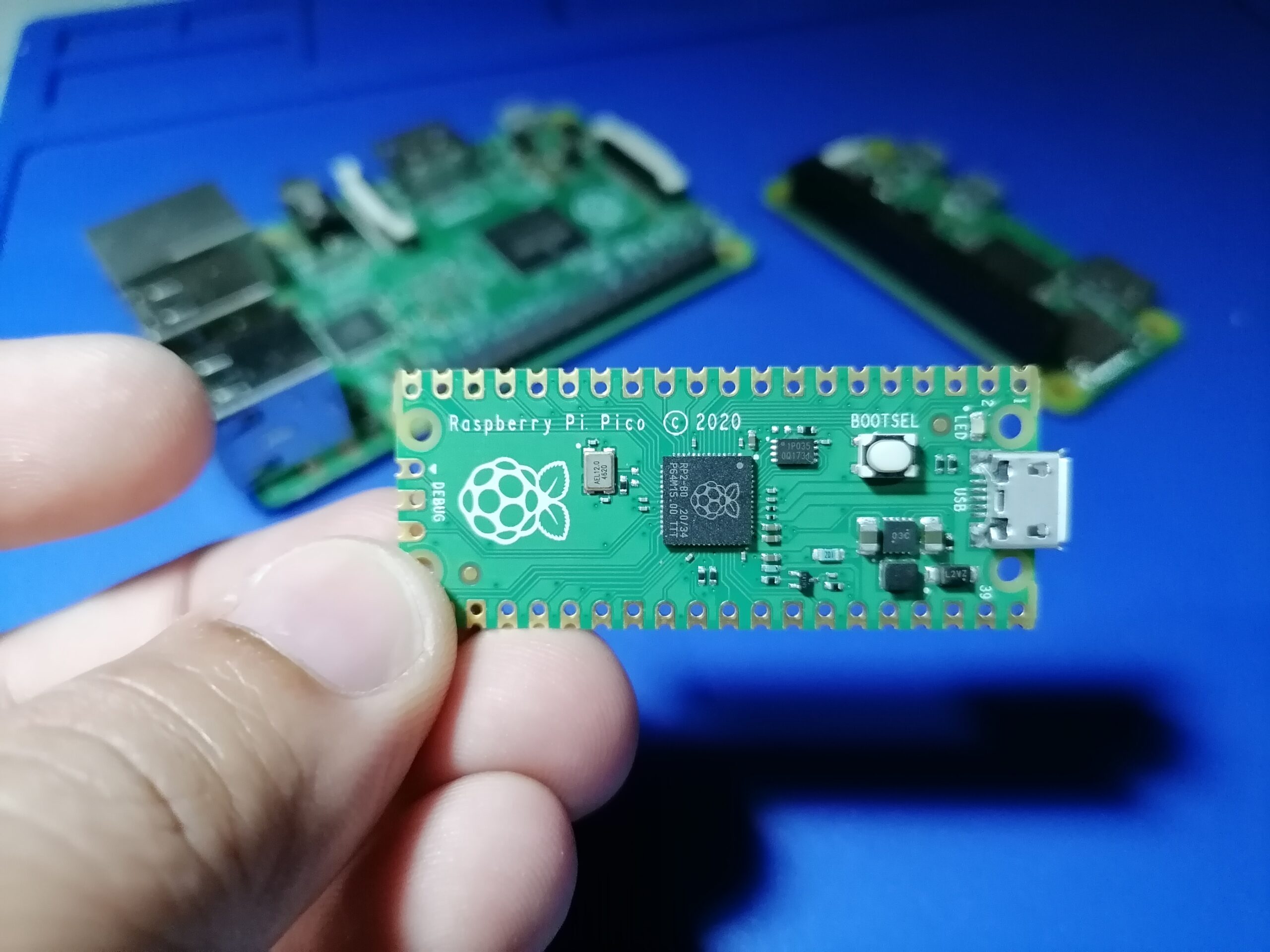
The Raspberry Pi Pico, a microcontroller based on the RP2040 chip, can emulate a Human Interface Device (HID) like a keyboard or mouse. This tutorial will guide you through setting up your Raspberry Pi Pico as an HID device to send keyboard strokes and control mouse movements.
Prerequisites
Hardware
- Raspberry Pi Pico
- USB cable (for power and data transfer)
- Computer running Windows, macOS, or Linux
Software
- MicroPython firmware with HID support
- Thonny IDE (or another MicroPython-compatible IDE)
Flash MicroPython Firmware with HID Support
By default, the official MicroPython firmware does not include HID functionality. We will use a custom MicroPython firmware that supports HID.
- Download the MicroPython firmware with HID support from a trusted source (e.g., https://github.com/adafruit/circuitpython).
- Put the Pico in bootloader mode by holding the BOOTSEL button while plugging it into your computer via USB.
- Drag and drop the downloaded .uf2 file onto the mounted RPI-RP2 drive.
Once the Pico restarts, it is ready to run MicroPython.
Install Required Libraries
To use the HID functions, you need to install the usb_hid library.
- Open Thonny IDE.
- Connect your Pico and open a new script.
- Import the necessary libraries:
<span>import time
import usb_hid
from adafruit_hid.keyboard import Keyboard
from adafruit_hid.keycode import Keycode
from adafruit_hid.mouse import Mouse</span>
Emulating a Keyboard
The following code sends a "Hello, World!" message when the Pico is connected:
<span>kbd = Keyboard(usb_hid.devices)
time.sleep(1)  # Allow time for HID initialization

kbd.send(Keycode.H, Keycode.E, Keycode.L, Keycode.L, Keycode.O, Keycode.COMMA, Keycode.SPACE,
         Keycode.W, Keycode.O, Keycode.R, Keycode.L, Keycode.D, Keycode.EXCLAMATION)</span>
This script mimics pressing the keys HELLO, WORLD! on a standard keyboard.
Controlling Mouse Movements
To control the mouse, use the Mouse class:
<span>mouse = Mouse(usb_hid.devices)
time.sleep(1)

# Move the mouse to the right
mouse.move(x=50)
time.sleep(1)

# Move the mouse down
mouse.move(y=50)
time.sleep(1)

# Perform a left-click
mouse.click(Mouse.LEFT_BUTTON)</span>
This code moves the mouse cursor and performs a left-click action.
Automating Keyboard and Mouse Actions
You can create automation scripts, such as making the Pico send keystrokes when a button is pressed. Here’s an example:
<span>import machine
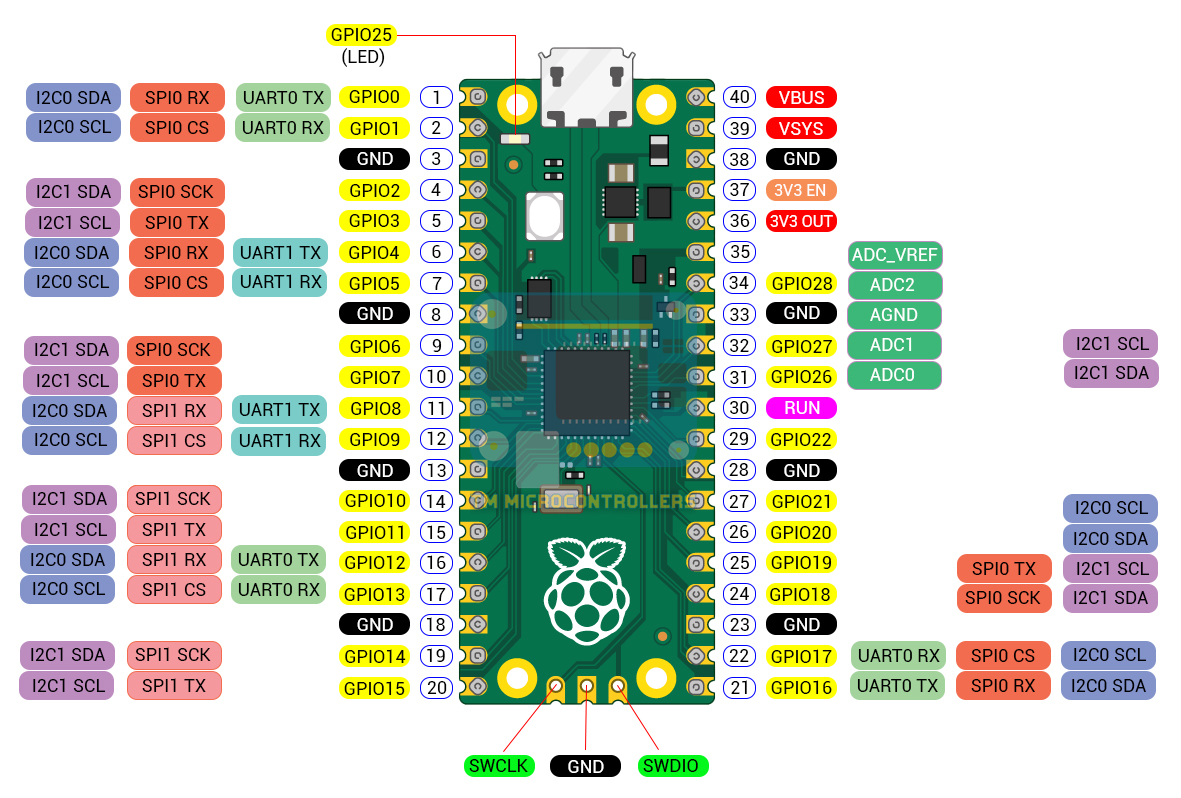
button = machine.Pin(2, machine.Pin.IN, machine.Pin.PULL_UP)

while True:
    if not button.value():  # When button is pressed
        kbd.send(Keycode.A)  # Simulate pressing 'A'
        time.sleep(0.5)  # Prevent spamming</span>
Conclusion
With these steps, you can turn your Raspberry Pi Pico into a powerful HID device. You can use it for automation, accessibility solutions, or even creative input devices. Experiment with different key sequences and mouse movements to build your custom HID solutions!