Access control systems are commonly used in offices, schools, laboratories, apartments, and industrial facilities. At the center of these systems is a controller that decides whether a person is allowed to enter, controls the door lock, and monitors alarm inputs.
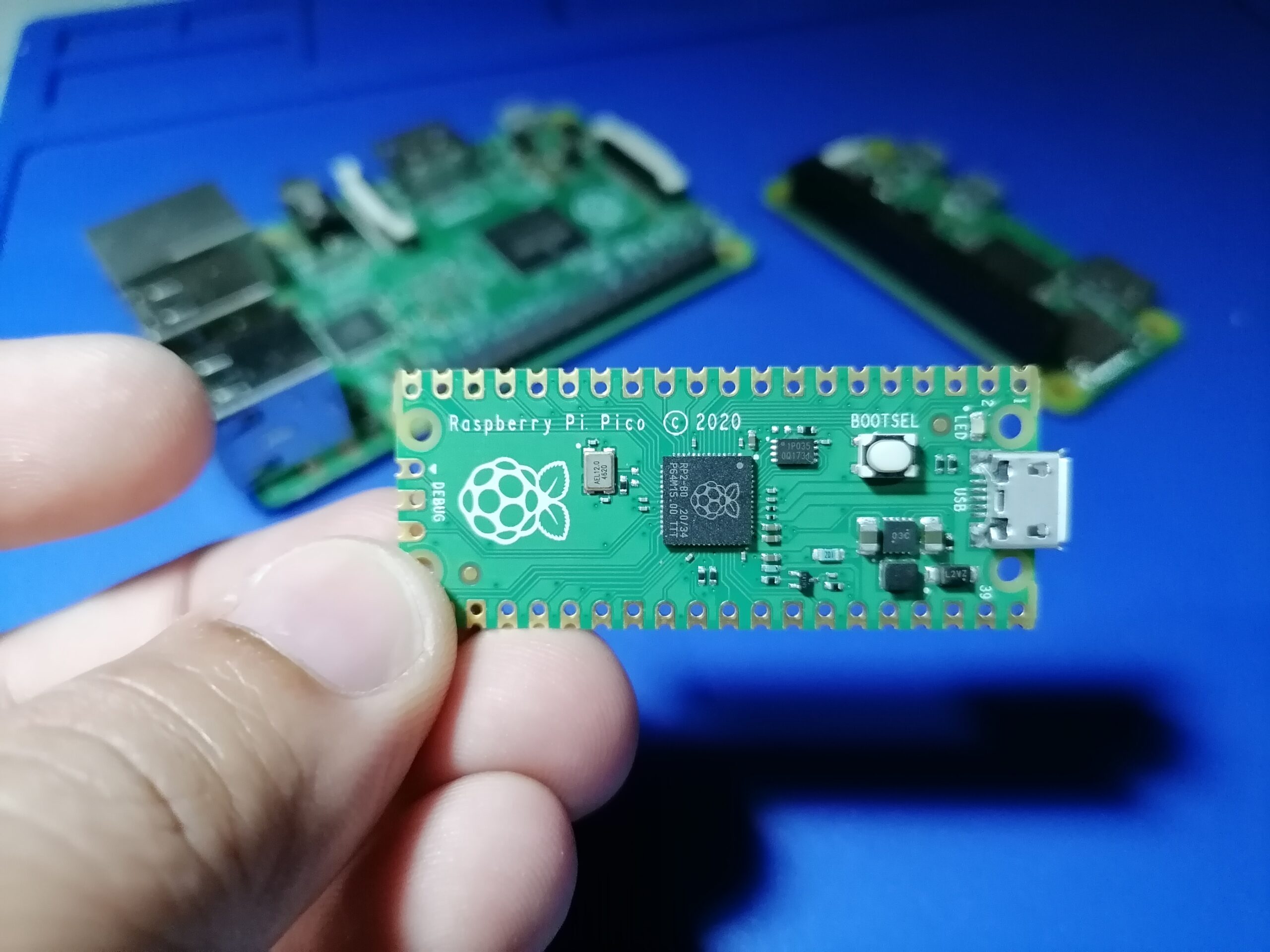
In this tutorial, I will build a small access control system using a Raspberry Pi Pico and several modules from the Elecrow Raspberry Pi Pico Advanced Kit. The system can read an RFID card, accept a PIN from a keypad, show messages on an LCD, control a solenoid lock through a relay, and respond to fire and tamper alarm inputs.
This is not meant to replace a real commercial access control panel, but it is a very good learning project if you want to understand how access control logic works at the microcontroller level.
Project Overview
The Raspberry Pi Pico will act as the main controller. It will accept access requests from two sources:
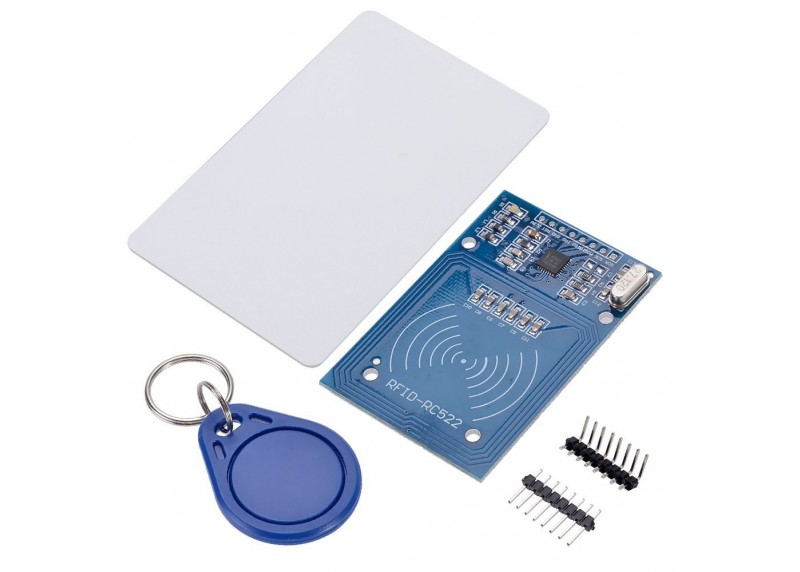
- An RFID card scanned through the RC522 RFID module
- A PIN entered through a membrane keypad
If the card UID or PIN is valid, the Pico activates a relay driver. The relay then powers a solenoid lock for a few seconds to simulate unlocking a door.
The system also monitors two alarm inputs:
- Fire alarm input
- Tamper alarm input
When the fire alarm is triggered, the door is released and the buzzer sounds. This simulates a real access control system where doors may be released during emergency conditions.
When the tamper alarm is triggered, the system keeps the door locked and sounds the buzzer. This simulates someone trying to force open or tamper with the door or panel.
About the Elecrow Raspberry Pi Pico Advanced Kit

For this project, I used modules from the Elecrow Raspberry Pi Pico Advanced Kit. The kit includes a Raspberry Pi Pico, breadboards, LEDs, an RGB module, sound sensor, PIR motion sensor, photoresistor module, passive buzzer, vibration sensor, magnetic spring module, soil moisture sensor, potentiometer, servo, joystick, RC522 RFID module, 4-digit display, traffic light module, rotary encoder, 1602 LCD, temperature and humidity sensor, raindrops module, flame sensor, OLED module, membrane keypad, smart car parts, ultrasonic sensor, infrared remote, and several other accessories.

For this access control project, I will use the parts that make sense for a small door controller:
- Raspberry Pi Pico
- RC522 RFID module
- Membrane keypad
- 1602 LCD module
- Passive buzzer
- LEDs (traffic light module)
- Flame sensor or button for fire alarm simulation
- Vibration sensor for tamper detection
I will also use an external solenoid lock and relay driver. These are not driven directly by the Pico because a solenoid needs more current than a GPIO pin can provide.
How the System Works
Here is the basic block diagram of the project:

The Pico continuously checks the system inputs. In normal standby mode, the LCD asks the user to scan a card or enter a PIN.
If access is granted, the relay turns on and the solenoid unlocks for a short time. If access is denied, the buzzer gives an error sound and the red LED turns on.
The fire alarm and tamper alarm have higher priority than normal card or PIN access.
Features of This Project
This project includes the following features:
- RFID card access using the RC522 module
- PIN access using a membrane keypad
- LCD status messages
- Solenoid lock control using a relay driver
- Buzzer feedback
- LED status indicators
- Fire alarm input
- Tamper alarm input
- Optional door contact monitoring
- MicroPython code for beginners
Required Components
Most of the components used in this project are included in the Elecrow Raspberry Pi Pico Advanced Kit. I also added a solenoid lock and relay driver to make the project closer to a real access control setup.
| Component | Purpose |
|---|---|
| Raspberry Pi Pico | Main controller |
| RC522 RFID module | Reads RFID cards |
| Membrane keypad | PIN entry |
| 1602 LCD module | Displays system status |
| Passive buzzer | Alarm and feedback sound |
| Red LED | Access denied / alarm indicator |
| Green LED | Access granted indicator |
| Yellow LED | Standby / warning indicator |
| Flame sensor or button | Fire alarm input |
| Vibration sensor | Tamper alarm input |
| Relay driver module | Controls the solenoid lock |
| Solenoid lock | Door lock output |
| External power supply | Powers the solenoid lock |
You can also use a servo motor instead of a solenoid lock if you want a safer beginner version of the project. However, using a relay and solenoid makes the project feel closer to a real access control system.
Important Safety Note About Solenoid Locks
The Raspberry Pi Pico cannot directly drive a solenoid lock. A solenoid usually requires more voltage and current than a Pico GPIO pin can provide.
The correct setup is:
Pico GPIO → Relay Driver Input → Relay Contact → Solenoid Power
The Pico only controls the relay input. The solenoid must have its own power supply.
Also, make sure the Pico ground and relay module ground are connected together, unless you are using a fully isolated relay module.
If your relay board or solenoid driver does not already include flyback protection, you should add a diode across the solenoid coil to protect the circuit from voltage spikes.
For a real door access system, use proper certified hardware. This tutorial is only for learning and prototyping.
Pin Connections
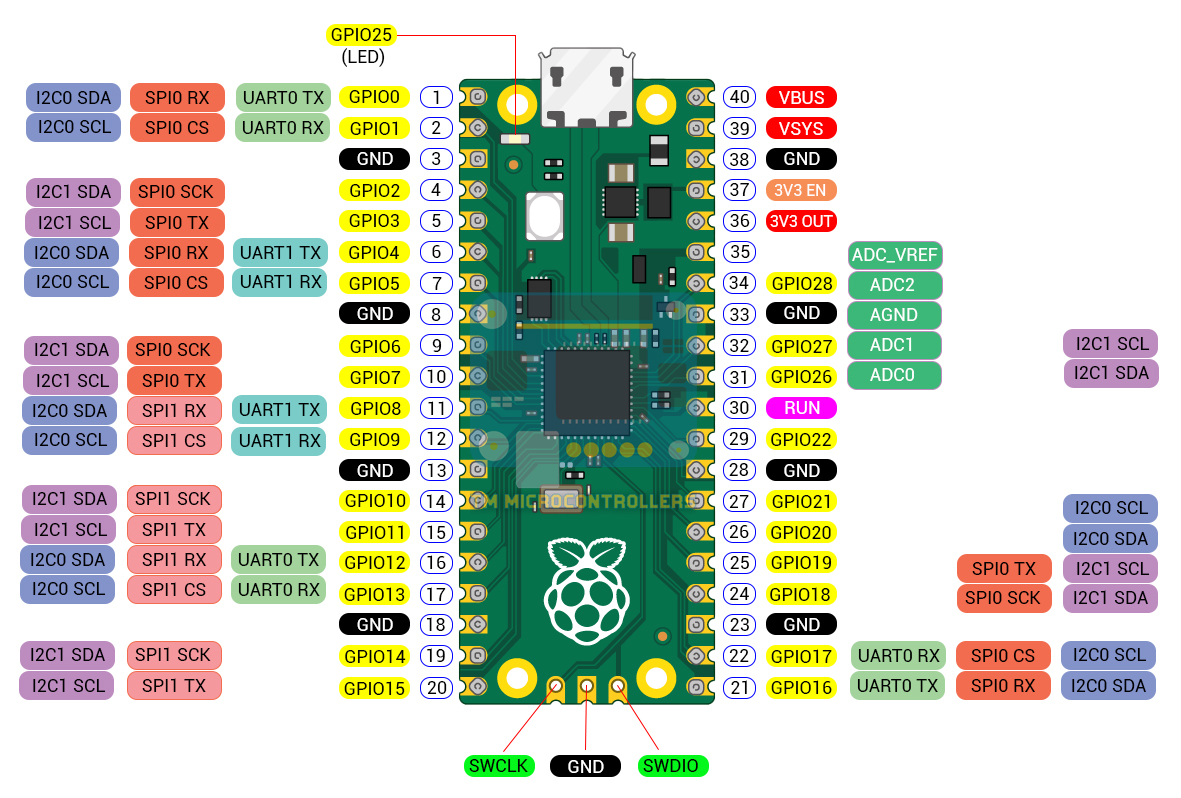
The exact pins can be changed in the code, but I will use this pin assignment for the tutorial.
RC522 RFID Module to Raspberry Pi Pico
The RC522 uses SPI communication.
| RC522 Pin | Raspberry Pi Pico Pin |
|---|---|
| SDA / SS | GP17 |
| SCK | GP18 |
| MOSI | GP19 |
| MISO | GP16 |
| RST | GP20 |
| 3.3V | 3V3 |
| GND | GND |
Do not connect the RC522 to 5V. The RC522 module works with 3.3V logic.
I2C LCD to Raspberry Pi Pico
This tutorial assumes that the 1602 LCD has an I2C backpack.
| LCD Pin | Raspberry Pi Pico Pin |
|---|---|
| VCC | VBUS or 5V |
| GND | GND |
| SDA | GP4 |
| SCL | GP5 |
Most I2C LCD backpacks work at 5V, but the I2C pull-ups may also pull SDA and SCL to 5V. Many hobby modules work in practice, but the safer method is to use a level shifter or power the backpack in a way that keeps the I2C lines at 3.3V.
If your LCD has 16 pins instead of 4 pins, then it is probably a parallel LCD and will need different wiring and a different library.
Keypad to Raspberry Pi Pico
For a 4x4 membrane keypad:
| Keypad Line | Pico Pin |
|---|---|
| Row 1 | GP6 |
| Row 2 | GP7 |
| Row 3 | GP8 |
| Row 4 | GP9 |
| Column 1 | GP10 |
| Column 2 | GP11 |
| Column 3 | GP12 |
| Column 4 | GP13 |
If you are using a 4x3 keypad, you can modify the keypad map and remove one column.
Relay Driver and Solenoid Lock
| Relay Module Pin | Pico / Supply Connection |
|---|---|
| IN | GP14 |
| VCC | 5V or relay module required voltage |
| GND | GND |
The solenoid is connected through the relay contacts, not directly to the Pico.
A simple wiring idea is:
Solenoid Power +  → Relay COM
Relay NO          → Solenoid +
Solenoid -        → Solenoid Power -
When the relay turns on, the solenoid receives power and unlocks.
Some relay modules are active-low. This means the relay turns on when the Pico output is LOW instead of HIGH. I will make this configurable in the code.
Buzzer and LEDs
| Part | Pico Pin |
|---|---|
| Buzzer | GP15 |
| Green LED | GP21 |
| Red LED | GP22 |
| Yellow LED | GP26 |
Use current-limiting resistors for the LEDs.
Alarm Inputs
| Alarm Input | Suggested Component | Pico Pin |
|---|---|---|
| Fire alarm input | Flame sensor DO or push button | GP27 |
| Tamper alarm input | Vibration sensor or magnetic sensor | GP28 |
| Door contact, optional | Magnetic spring module | GP2 |
For beginner testing, I recommend using push buttons first. Once the logic works, you can replace the buttons with the flame sensor and tamper sensor.
This is my setup on a breadboard. I didn't use the relay + solenoid lock yet; the red LED on the middle of the breadboard will serve as the indicator that the lock released or not.

Installing MicroPython on the Raspberry Pi Pico
Before uploading the code, install MicroPython on the Raspberry Pi Pico. You can download the latest UF2 file in the official MicroPython website.
- Hold the BOOTSEL button on the Pico.
- Connect the Pico to your computer using a USB cable.
- Release the BOOTSEL button.
- The Pico should appear as a USB drive.
- Copy the MicroPython UF2 file to the Pico.
- Open Thonny.
- Select the MicroPython interpreter for Raspberry Pi Pico.
Once this is done, you can run MicroPython code on the Pico using Thonny.
Required MicroPython Libraries
This project needs libraries for:
- RC522 RFID module
- I2C LCD
For the RC522, you need a file named:
mfrc522.py
For the I2C LCD, you need files such as:
lcd_api.py
pico_i2c_lcd.py
You can find the mfrc522.py in this library, while the I2C LCD files are in this library.
Upload these files to the Raspberry Pi Pico using Thonny. You can place them directly on the Pico or inside a /lib folder.
Testing the RFID Reader First
Before combining all parts, it is better to test the RFID reader alone. This helps you get the UID of your RFID card.
A card UID may look something like this:
12 AB 34 CD
You will later place this UID inside the list of authorized cards.
In the final code, the authorized cards are stored here:
AUTHORIZED_CARDS = [
    z">"12 AB 34 CD",
    z">"A1 B2 C3 D4"
]
Replace these values with your actual card UID.
System Behavior
The system has several operating conditions.
Idle Mode
In idle mode, the LCD shows:
PICO ACCESS
SCAN CARD/PIN
The system waits for an RFID card or keypad input.
Access Granted
If the card or PIN is valid:
ACCESS GRANTED
DOOR UNLOCKED
The green LED turns on, the buzzer gives a short beep, and the relay unlocks the solenoid for a few seconds.
Access Denied
If the card or PIN is invalid:
ACCESS DENIED
TRY AGAIN
The red LED turns on and the buzzer gives an error sound.
Fire Alarm
If the fire alarm input is triggered:
FIRE ALARM!
DOOR RELEASED
The door unlocks and the buzzer sounds repeatedly.
This is done because many access control systems release doors during emergency conditions. Again, this project is only a simulation.
Tamper Alarm
If the tamper input is triggered:
TAMPER ALARM!
SYSTEM LOCKED
The system sounds the buzzer and flashes the red LED. The door remains locked.
Event Priority
The Pico should not treat all events equally. Alarm inputs should have higher priority than normal access requests.
For this project, I use this priority:
| Priority | Event | Action |
|---|---|---|
| 1 | Fire alarm | Unlock door and sound alarm |
| 2 | Tamper alarm | Keep locked and sound alarm |
| 3 | Valid RFID or PIN | Unlock door temporarily |
| 4 | Invalid RFID or PIN | Deny access |
| 5 | Idle | Wait for input |
Fire alarm has the highest priority because it is a safety-related condition.
Final MicroPython Code
Upload the required libraries first, then save the following code as
main.py
on the Raspberry Pi Pico.
This code assumes:
- RC522 uses SPI0
- LCD uses I2C0
- Keypad is 4x4
- Relay output is active-high by default
- Fire and tamper inputs are active-low using pull-up resistors
If your relay module is active-low, change:
RELAY_ACTIVE_HIGH = True
to:
RELAY_ACTIVE_HIGH = False
Here is the complete code:
from machine import Pin, PWM, I2C, SPI
from time import sleep, ticks_ms, ticks_diff

# ------------------------------------------------------------
# Optional libraries
# ------------------------------------------------------------
# These imports depend on the library files you uploaded.
# If your library uses different class names, adjust these lines.

try:
    from mfrc522 import MFRC522
except ImportError:
    MFRC522 = None

try:
    from pico_i2c_lcd import I2cLcd
except ImportError:
    I2cLcd = None


# ------------------------------------------------------------
# User settings
# ------------------------------------------------------------

AUTHORIZED_CARDS = [
    "C3 A4 13 29",
    "12 AB 34 CD",
    "A1 B2 C3 D4"
]

AUTHORIZED_PIN = "1234"

ALARM_CHECK_INTERVAL_SECONDS = 5
UNLOCK_TIME_SECONDS = 3

RELAY_ACTIVE_HIGH = True

LCD_I2C_ADDR = 0x27
LCD_ROWS = 2
LCD_COLS = 16


# ------------------------------------------------------------
# Pin assignments
# ------------------------------------------------------------

# RFID RC522 SPI pins
RFID_SCK_PIN = 18
RFID_MOSI_PIN = 19
RFID_MISO_PIN = 16
RFID_CS_PIN = 17
RFID_RST_PIN = 20

# LCD I2C pins
LCD_SDA_PIN = 4
LCD_SCL_PIN = 5

# Keypad pins
ROW_PINS = [6, 7, 8, 9]
COL_PINS = [10, 11, 12, 13]

# Outputs
RELAY_PIN = 14
BUZZER_PIN = 15
GREEN_LED_PIN = 21
RED_LED_PIN = 22
YELLOW_LED_PIN = 26

# Inputs
FIRE_INPUT_PIN = 27
TAMPER_INPUT_PIN = 28
DOOR_CONTACT_PIN = 2


# ------------------------------------------------------------
# Hardware setup
# ------------------------------------------------------------

green_led = Pin(GREEN_LED_PIN, Pin.OUT)
red_led = Pin(RED_LED_PIN, Pin.OUT)
yellow_led = Pin(YELLOW_LED_PIN, Pin.OUT)

relay = Pin(RELAY_PIN, Pin.OUT)

buzzer = PWM(Pin(BUZZER_PIN))
buzzer.duty_u16(0)

fire_input = Pin(FIRE_INPUT_PIN, Pin.IN, Pin.PULL_UP)
tamper_input = Pin(TAMPER_INPUT_PIN, Pin.IN, Pin.PULL_UP)
door_contact = Pin(DOOR_CONTACT_PIN, Pin.IN, Pin.PULL_UP)

row_pins = [Pin(pin, Pin.OUT) for pin in ROW_PINS]
col_pins = [Pin(pin, Pin.IN, Pin.PULL_UP) for pin in COL_PINS]

key_map = [
    ["1", "2", "3", "A"],
    ["4", "5", "6", "B"],
    ["7", "8", "9", "C"],
    ["*", "0", "#", "D"]
]

# LCD setup
lcd = None

if I2cLcd is not None:
    try:
        i2c = I2C(0, sda=Pin(LCD_SDA_PIN), scl=Pin(LCD_SCL_PIN), freq=400000)
        lcd = I2cLcd(i2c, LCD_I2C_ADDR, LCD_ROWS, LCD_COLS)
    except Exception as e:
        print("LCD init failed:", e)
        lcd = None
else:
    print("LCD library not found. LCD output disabled.")

# RFID setup
rfid = None

if MFRC522 is not None:
    try:
        # This constructor may be different depending on your mfrc522.py library.
        # Some libraries use:
        # rfid = MFRC522(spi_id=0, sck=18, miso=16, mosi=19, cs=17, rst=20)
        #
        # If this line fails, check the documentation of your RC522 library.
        rfid = MFRC522(
            spi_id=0,
            sck=RFID_SCK_PIN,
            miso=RFID_MISO_PIN,
            mosi=RFID_MOSI_PIN,
            cs=RFID_CS_PIN,
            rst=RFID_RST_PIN
        )
    except Exception as e:
        print("RFID init failed:", e)
        rfid = None
else:
    print("MFRC522 library not found. RFID disabled.")


# ------------------------------------------------------------
# Helper functions
# ------------------------------------------------------------

def set_relay(active):
    if RELAY_ACTIVE_HIGH:
        relay.value(1 if active else 0)
    else:
        relay.value(0 if active else 1)


def lock_door():
    set_relay(False)


def unlock_door():
    set_relay(True)


def all_leds_off():
    green_led.off()
    red_led.off()
    yellow_led.off()

def pad_lcd_text(text, width=16):
    text = str(text)[:width]

    while len(text) < width:
        text += " "

    return text

last_lcd_line1 = None
last_lcd_line2 = None

def lcd_message(line1, line2=""):
    global last_lcd_line1, last_lcd_line2

    line1 = str(line1)[:16]
    line2 = str(line2)[:16]

    # Do not refresh the LCD if the message did not change
    if line1 == last_lcd_line1 and line2 == last_lcd_line2:
        return

    print(line1, line2)

    last_lcd_line1 = line1
    last_lcd_line2 = line2

    if lcd is None:
        return

    lcd.move_to(0, 0)
    lcd.putstr(pad_lcd_text(line1, 16))

    lcd.move_to(0, 1)
    lcd.putstr(pad_lcd_text(line2, 16))


def beep(freq=2000, duration=0.1):
    buzzer.freq(freq)
    buzzer.duty_u16(30000)
    sleep(duration)
    buzzer.duty_u16(0)


def beep_success():
    beep(1800, 0.08)
    sleep(0.05)
    beep(2200, 0.08)


def beep_error():
    for _ in range(3):
        beep(600, 0.12)
        sleep(0.08)


def beep_alarm():
    beep(1200, 0.15)
    sleep(0.08)


def is_fire_alarm_active():
    # Active-low input
    return fire_input.value() == 0


def is_tamper_active():
    # Active-low input
    return tamper_input.value() == 0


def is_door_open():
    # This depends on your magnetic switch module.
    # For this example, LOW means door open.
    return door_contact.value() == 0


# ------------------------------------------------------------
# Keypad functions
# ------------------------------------------------------------

def scan_keypad():
    for row_index, row in enumerate(row_pins):
        for r in row_pins:
            r.value(1)

        row.value(0)

        for col_index, col in enumerate(col_pins):
            if col.value() == 0:
                sleep(0.05)  # debounce

                if col.value() == 0:
                    key = key_map[row_index][col_index]

                    while col.value() == 0:
                        sleep(0.01)

                    return key

    return None


# ------------------------------------------------------------
# RFID functions
# ------------------------------------------------------------

def uid_to_string(uid):
    return " ".join("{:02X}".format(byte) for byte in uid)


def read_rfid_card():
    if rfid is None:
        return None

    try:
        (stat, tag_type) = rfid.request(rfid.REQIDL)

        if stat == rfid.OK:
            (stat, uid) = rfid.SelectTagSN()

            if stat == rfid.OK:
                return uid_to_string(uid)

    except Exception as e:
        print("RFID read error:", e)

    return None


# ------------------------------------------------------------
# Access control actions
# ------------------------------------------------------------

def grant_access(source):
    all_leds_off()
    green_led.on()

    lcd_message("ACCESS GRANTED", source)
    beep_success()

    unlock_door()
    sleep(UNLOCK_TIME_SECONDS)
    lock_door()

    green_led.off()
    lcd_message("DOOR LOCKED", "SCAN CARD/PIN")
    sleep(1)


def deny_access(reason):
    all_leds_off()
    red_led.on()

    lcd_message("ACCESS DENIED", reason)
    beep_error()

    red_led.off()
    sleep(1)

def sound_alarm_cycle(duration_seconds, fire_mode=False):
    start_time = ticks_ms()

    while ticks_diff(ticks_ms(), start_time) < duration_seconds * 1000:
        if fire_mode:
            red_led.toggle()
            yellow_led.toggle()
        else:
            red_led.toggle()
            yellow_led.off()

        beep_alarm()
        sleep(0.2)

    buzzer.duty_u16(0)

def handle_fire_alarm():
    all_leds_off()

    lcd_message("FIRE ALARM!", "DOOR RELEASED")
    unlock_door()

    while True:
        sound_alarm_cycle(ALARM_CHECK_INTERVAL_SECONDS, fire_mode=True)

        if not is_fire_alarm_active():
            break

        lcd_message("FIRE ALARM!", "STILL ACTIVE")

    all_leds_off()
    lock_door()
    lcd_message("FIRE CLEARED", "DOOR LOCKED")
    sleep(1)


def handle_tamper_alarm():
    all_leds_off()

    lcd_message("TAMPER ALARM!", "SYSTEM LOCKED")
    lock_door()

    while True:
        sound_alarm_cycle(ALARM_CHECK_INTERVAL_SECONDS, fire_mode=False)

        if not is_tamper_active():
            break

        lcd_message("TAMPER ALARM!", "STILL ACTIVE")

    all_leds_off()
    lcd_message("TAMPER CLEARED", "SCAN CARD/PIN")
    sleep(1)


def handle_forced_door():
    all_leds_off()
    red_led.on()

    lcd_message("DOOR FORCED!", "ALARM ACTIVE")
    lock_door()

    # Sound alarm for a few seconds
    start_time = ticks_ms()

    while ticks_diff(ticks_ms(), start_time) < 5000:
        red_led.toggle()
        beep_alarm()
        sleep(0.2)

    all_leds_off()
    lcd_message("SCAN CARD/PIN", "")
    sleep(1)


# ------------------------------------------------------------
# Main program
# ------------------------------------------------------------

def main():
    entered_pin = ""
    last_idle_update = 0

    lock_door()
    all_leds_off()

    lcd_message("PICO ACCESS", "SCAN CARD/PIN")
    yellow_led.on()

    door_was_unlocked_by_system = False

    while True:
        # Highest priority: fire alarm
        if is_fire_alarm_active():
            handle_fire_alarm()
            entered_pin = ""
            lcd_message("PICO ACCESS", "SCAN CARD/PIN")
            yellow_led.on()
            continue

        # Second priority: tamper alarm
        if is_tamper_active():
            handle_tamper_alarm()
            entered_pin = ""
            lcd_message("PICO ACCESS", "SCAN CARD/PIN")
            yellow_led.on()
            continue

        # Optional forced door detection
        # This is basic logic only. A real system needs better door timing rules.
        if is_door_open() and not door_was_unlocked_by_system:
            handle_forced_door()
            entered_pin = ""
            lcd_message("PICO ACCESS", "SCAN CARD/PIN")
            yellow_led.on()
            continue

        # RFID access
        uid = read_rfid_card()

        if uid is not None:
            print("Card UID:", uid)

            if uid in AUTHORIZED_CARDS:
                yellow_led.off()
                door_was_unlocked_by_system = True
                grant_access("RFID CARD")
                door_was_unlocked_by_system = False
            else:
                yellow_led.off()
                deny_access("INVALID CARD")

            lcd_message("PICO ACCESS", "SCAN CARD/PIN")
            yellow_led.on()
            entered_pin = ""
            sleep(0.5)
            continue

        # Keypad access
        key = scan_keypad()

        if key is not None:
            print("Key:", key)

            if key == "*":
                entered_pin = ""
                lcd_message("ENTER PIN:", "")
                beep(1200, 0.05)

            elif key == "#":
                if entered_pin == AUTHORIZED_PIN:
                    yellow_led.off()
                    door_was_unlocked_by_system = True
                    grant_access("PIN ENTRY")
                    door_was_unlocked_by_system = False
                else:
                    yellow_led.off()
                    deny_access("WRONG PIN")

                entered_pin = ""
                lcd_message("PICO ACCESS", "SCAN CARD/PIN")
                yellow_led.on()

            elif key in "0123456789":
                if len(entered_pin) < 8: entered_pin += key lcd_message("ENTER PIN:", "*" * len(entered_pin)) beep(1500, 0.04) # Refresh idle display occasionally if ticks_diff(ticks_ms(), last_idle_update) > 3000 and entered_pin == "":
            lcd_message("PICO ACCESS", "SCAN CARD/PIN")
            yellow_led.on()
            last_idle_update = ticks_ms()

        sleep(0.05)


main()
How the Code Works
The code starts by defining the authorized cards and PIN:
AUTHORIZED_CARDS = [
    "12 AB 34 CD",
    "A1 B2 C3 D4"
]

AUTHORIZED_PIN = "1234"
You need to replace the sample RFID UIDs with the actual UIDs of your cards.
The system also defines how long the door will unlock:
UNLOCK_TIME_SECONDS = 3
This means that when access is granted, the solenoid is released for 3 seconds.
There is also another delay for when the fire alarm or tamper alarm is triggered:
ALARM_CHECK_INTERVAL_SECONDS = 5
This means that the buzzer will stay in alarm mode for 5 seconds before checking the states of the sensor again.
Relay Control
The relay is controlled by this function:
def set_relay(active):
    if RELAY_ACTIVE_HIGH:
        relay.value(1 if active else 0)
    else:
        relay.value(0 if active else 1)
This is useful because some relay modules turn on when the input pin is HIGH, while others turn on when the input pin is LOW.
If your relay works backward, simply change this line:
RELAY_ACTIVE_HIGH = True
to:
RELAY_ACTIVE_HIGH = False
LCD Messages
The function below prints messages to both the LCD and the Thonny shell:
def lcd_message(line1, line2=z">""):
    print(line1, line2)

    if lcd is None:
        return

    lcd.clear()
    lcd.move_to(0, 0)
    lcd.putstr(line1[:16])

    lcd.move_to(0, 1)
    lcd.putstr(line2[:16])
The
[:16]
part makes sure that the message fits on a 16-column LCD.
Reading the Keypad
The keypad is scanned row by row. Each row is pulled LOW one at a time, and the Pico checks which column also becomes LOW.
def scan_keypad():
    for row_index, row in enumerate(row_pins):
        for r in row_pins:
            r.value(1)

        row.value(0)

        for col_index, col in enumerate(col_pins):
            if col.value() == 0:
                sleep(0.05)

                if col.value() == 0:
                    key = key_map[row_index][col_index]

                    while col.value() == 0:
                        sleep(0.01)

                    return key

    return None
The small delay is used for basic button debounce.
RFID Access Logic
The RFID function returns the UID of a scanned card:
uid = read_rfid_card()
Then the main loop checks whether the UID is in the list of authorized cards:
if uid in AUTHORIZED_CARDS:
    grant_access("RFID CARD")
else:
    deny_access("INVALID CARD")
This is the simplest way to handle RFID authorization in a beginner project.
PIN Access Logic
The keypad allows the user to enter a PIN. The
*
key clears the input, while the
#
key submits it.
if key == "*":
    entered_pin = ""

elif key == "#":
    if entered_pin == AUTHORIZED_PIN:
        grant_access("PIN ENTRY")
    else:
        deny_access("WRONG PIN")
This is similar to how many keypad-based access systems work.
Fire Alarm Logic
The fire alarm input has the highest priority. If it is active, the system immediately runs this function:
handle_fire_alarm()
Inside that function, the door is unlocked:
unlock_door()
Then the buzzer and LEDs continue until the fire alarm input clears.
This behavior simulates an emergency door release.
Tamper Alarm Logic
The tamper alarm works differently from the fire alarm. When tamper is detected, the system keeps the door locked:
lock_door()
Then it sounds the buzzer and flashes the red LED.
This simulates a forced access or panel tamper condition.
Door Contact Logic
The optional door contact can detect if the door was opened without a valid unlock command.
In this tutorial, the logic is simplified:
if is_door_open() and not door_was_unlocked_by_system:
    handle_forced_door()
In a real access control system, this part would usually include a delay timer. For example, after access is granted, the door is allowed to open for a few seconds. If it stays open too long, the controller may trigger a “door held open” alarm.
You can add this as an advanced improvement.
Video
Here's the project in action:
Again, I didn't include the relay and solenoid lock for this video. The red LED lighting up means the door is unlocked. Replacing the red LED with the relay module and solenoid lock combination opens the lock when the LED is on.
Testing the Project
Test the project in stages. Do not connect everything at once.
Step 1: Test the LCD
Upload a simple LCD test first and confirm that the LCD can display text.
Step 2: Test the Keypad
Print each key to the Thonny shell. Make sure every key is detected correctly.
Step 3: Test the RFID Reader
Scan your card and copy the UID from the shell.
Then place the UID inside:
AUTHORIZED_CARDS = [
    "YOUR CARD UID HERE"
]
Step 4: Test the Relay Without the Solenoid
Before connecting the solenoid, test the relay with only the relay module connected. You should hear the relay click when access is granted.
Step 5: Test the Solenoid Lock
Once the relay works, connect the solenoid to its external power supply through the relay contacts.
Do not power the solenoid from the Pico.
Step 6: Test Fire and Tamper Inputs
Use push buttons first. Once the logic works, replace the buttons with the flame sensor, magnetic sensor, or vibration sensor.
RFID Reader Not Detected
Check the SPI wiring carefully. The most common mistake is swapping MOSI and MISO.
Also make sure the RC522 is powered from 3.3V, not 5V.
LCD Shows Nothing
Try adjusting the contrast potentiometer on the I2C backpack.
If the LCD still does not work, scan for the I2C address. Some LCD backpacks use 0x27, while others use 0x3F.
Change this line if needed:
LCD_I2C_ADDR = 0x27
Relay Works Backward
Change:
RELAY_ACTIVE_HIGH = True
to:
RELAY_ACTIVE_HIGH = False
Buzzer Is Too Weak
The passive buzzer may need a transistor driver if you want it to be louder. For simple breadboard testing, direct GPIO control is usually enough.
Solenoid Resets the Pico
This usually means the solenoid is causing voltage drops or electrical noise.
Use a separate power supply for the solenoid, connect grounds properly, and add flyback protection if needed.
Improving the Project
There are many ways to improve this project.
You can add an enrollment mode where an admin card allows new cards to be registered. You can also save authorized cards in the Pico’s flash memory so they are not hardcoded in the program.
Another useful improvement is event logging. The Pico can record events such as:
ACCESS GRANTED - RFID
ACCESS DENIED - INVALID CARD
ACCESS GRANTED - PIN
FIRE ALARM
TAMPER ALARM
DOOR FORCED
If you use a Raspberry Pi Pico W instead of a regular Pico, you can add a simple web dashboard. This dashboard can show the latest access events and alarm status.
You can also add a real-time clock module to timestamp each event.
Final Thoughts
This Raspberry Pi Pico access control project combines several important embedded system concepts into one practical build. It uses SPI for RFID, GPIO scanning for the keypad, I2C for the LCD, PWM for the buzzer, and digital outputs for the relay and LEDs.
The best part is that the project behaves like a small version of a real access control controller. It accepts credentials, controls a lock, displays status messages, and responds to alarm inputs.
For beginners, MicroPython makes the project easier to understand because the code is readable and the system logic is clear. For a production access control device, I would normally use C or C++ for better structure, timing, and reliability. But for learning how the system works, MicroPython is a very good starting point.
The nice thing about using a kit like the Elecrow Raspberry Pi Pico Advanced Kit is that the project can be expanded easily. After getting the RFID and keypad access working, you can add more modules from the same kit, such as the OLED display, PIR motion sensor, vibration sensor, magnetic spring module, infrared receiver, or ultrasonic sensor.
This makes the project more than just a one-time RFID door lock demo. It becomes a small platform for learning how real embedded control systems handle inputs, outputs, alarms, and user feedback.